
ARC8 Email Setup On iOS
This is a tutorial to setup your ARC8 email with the native iCloud Mail app
1. Open Settings and select Apps
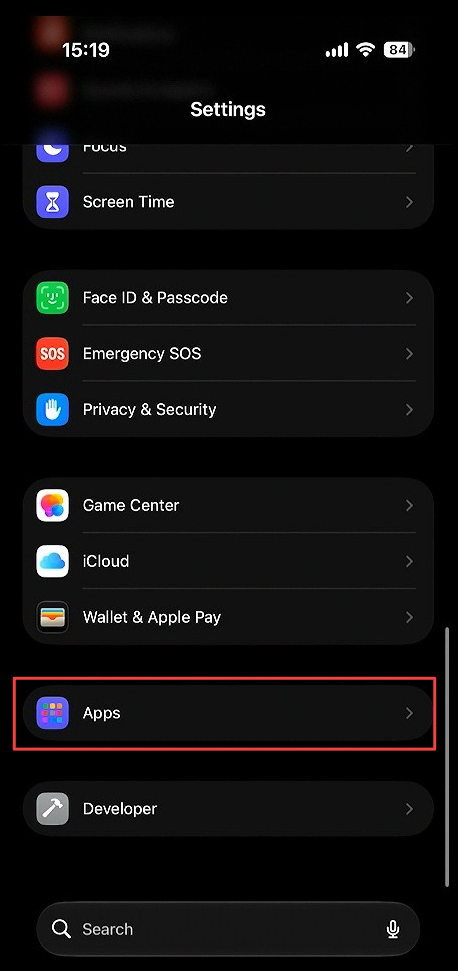
Open Settings. Scroll to the bottom and select Apps.
2. Select Mail
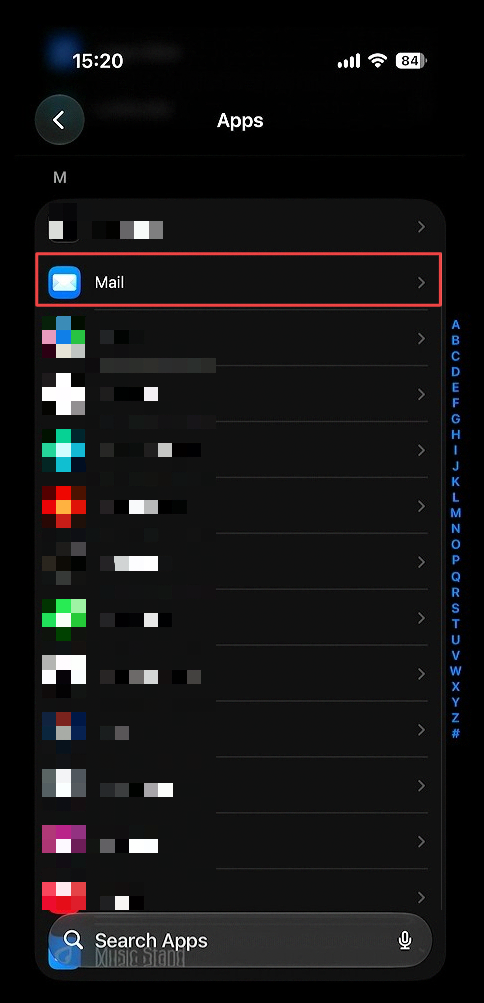
Scroll down and click Mail.
3. Selct Mail Accounts
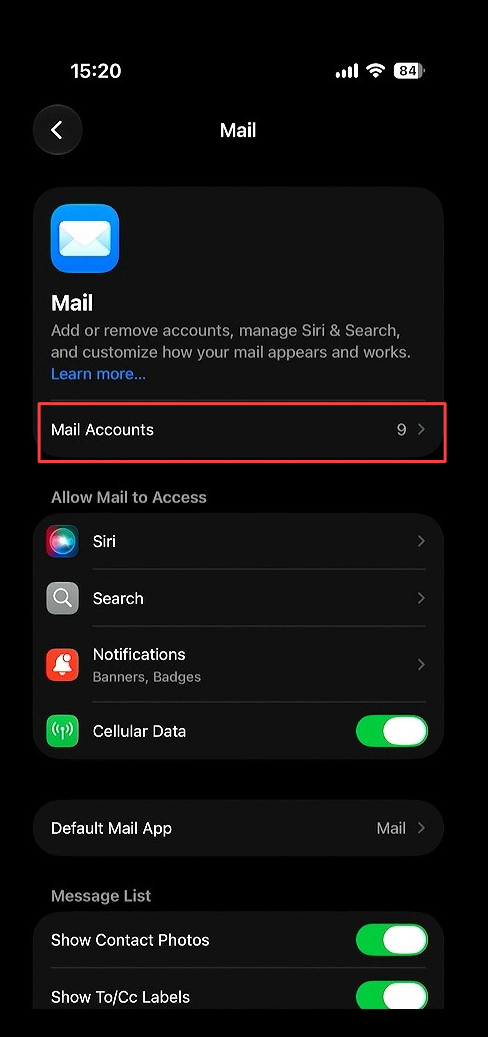
Select the mail accounts sub menu option
4. Select Add account
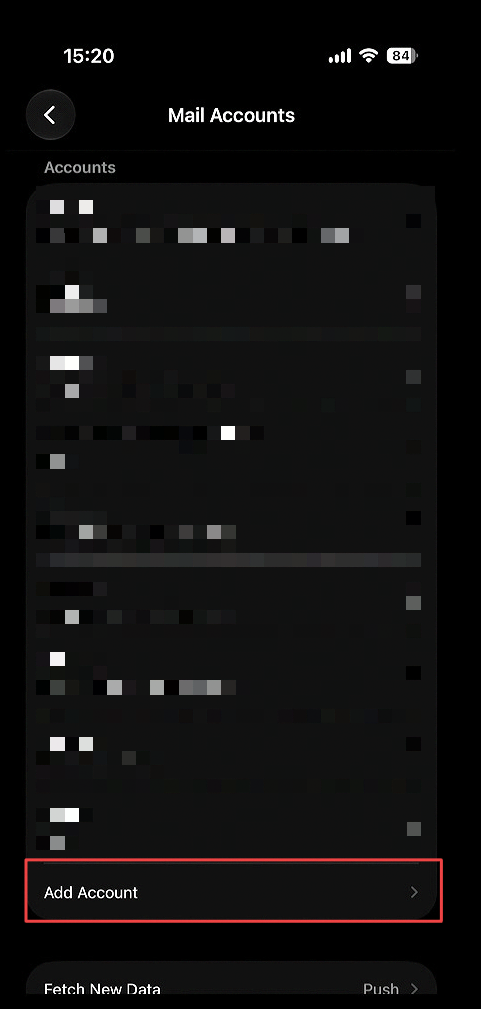
Below your already added accounts, select Add Account.
5. Enter in your ARC8 Email
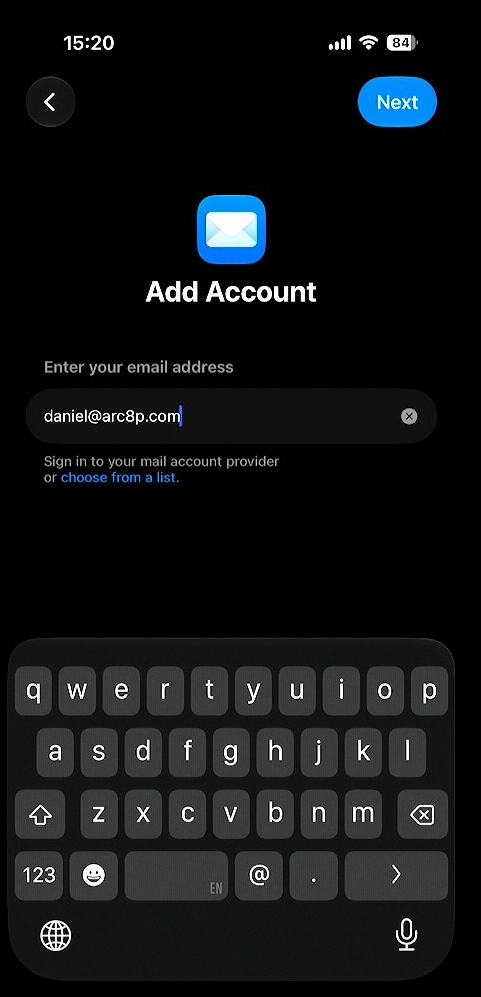
Fill in your ARC8 email then click Next.
6. Select Add Other Account
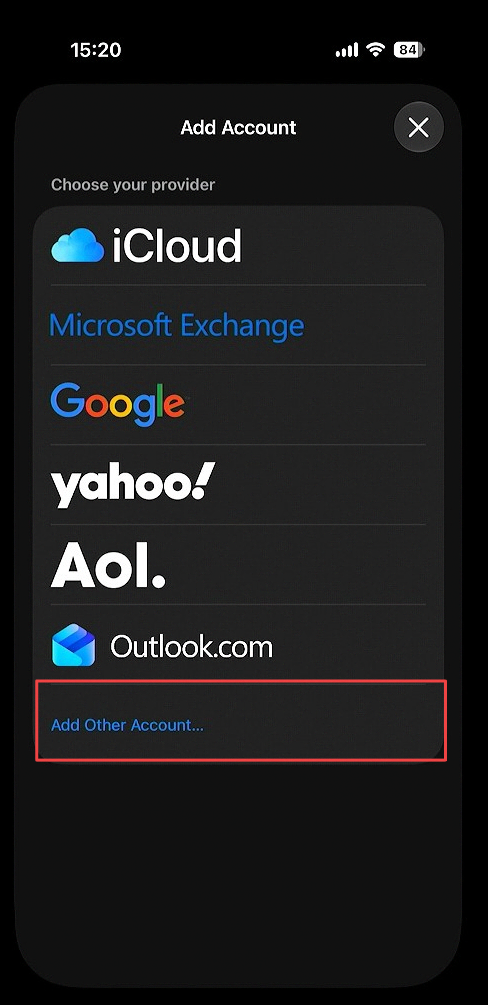
Click Add Other Account.
7. Select Mail Account
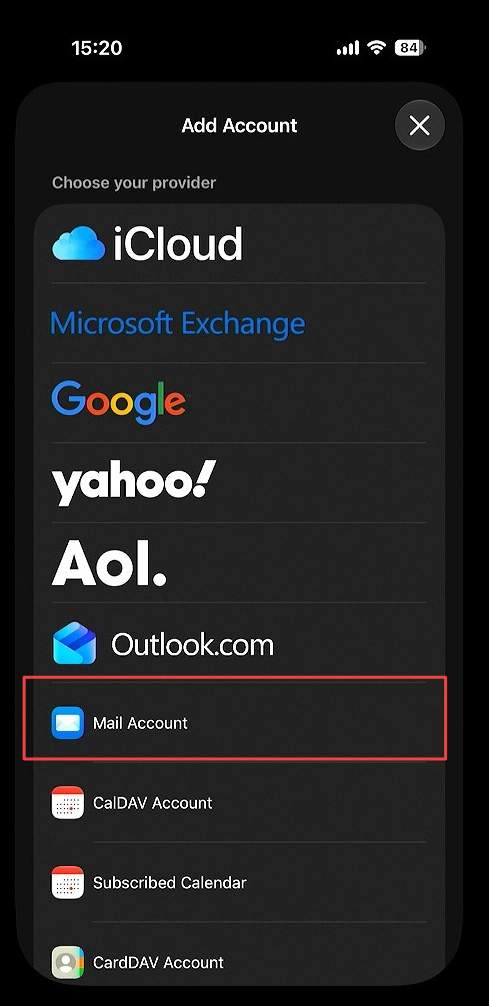
Select Mail Account.
8. Fill in IMAP settings
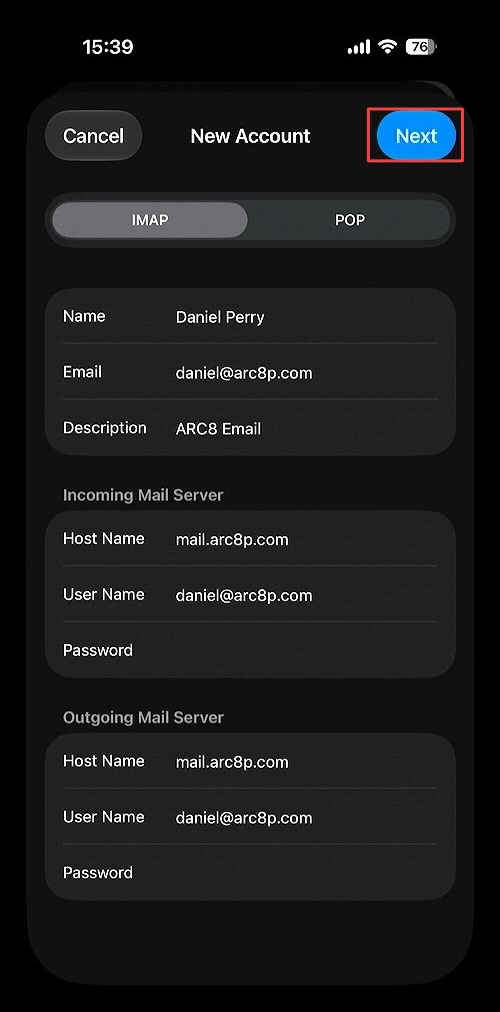
Enter all account information and click Next.
Set Host Name to mail.arc8p.com.
9. Save IMAP settings
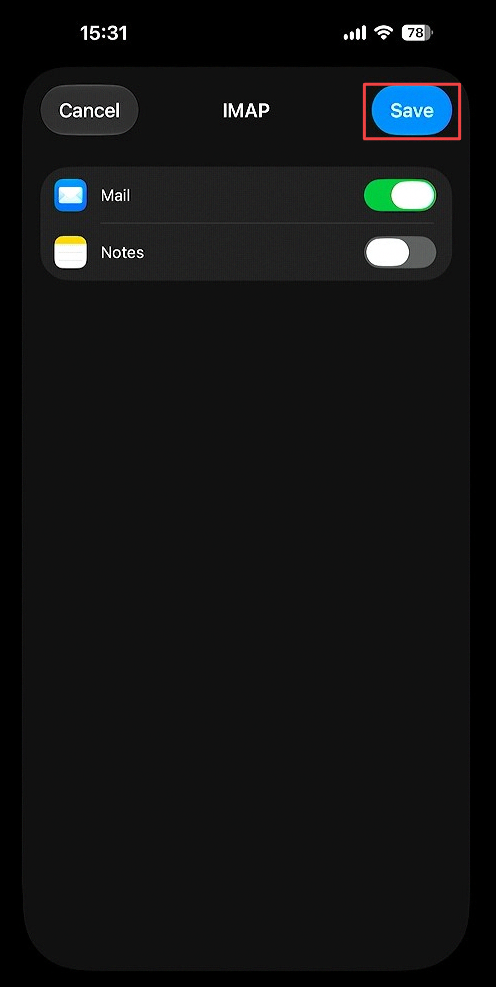
10. Select Mail
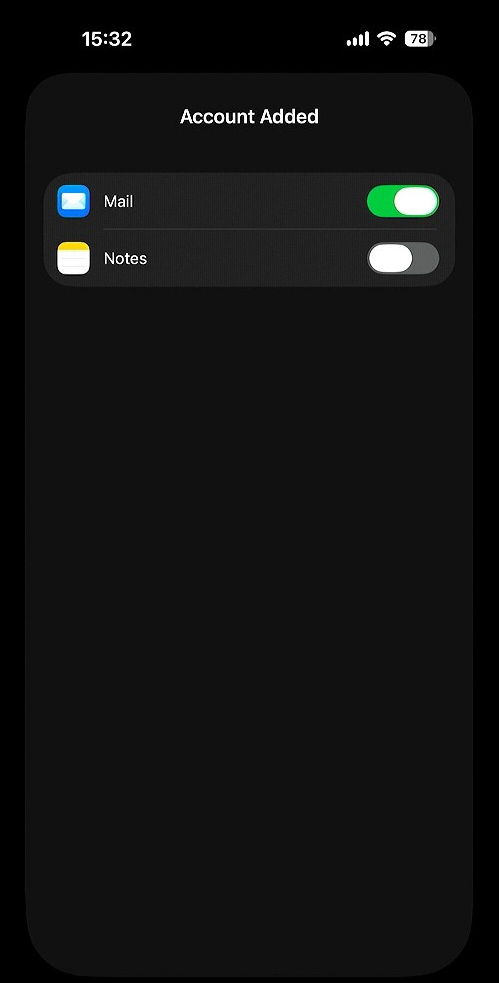
Select Mail to sync your ARC8 mail
Turning on Notes will only sync your iCloud Notes App with other iCloud devices also logged in on your ARC8 email
11. Email Appears in Mail App
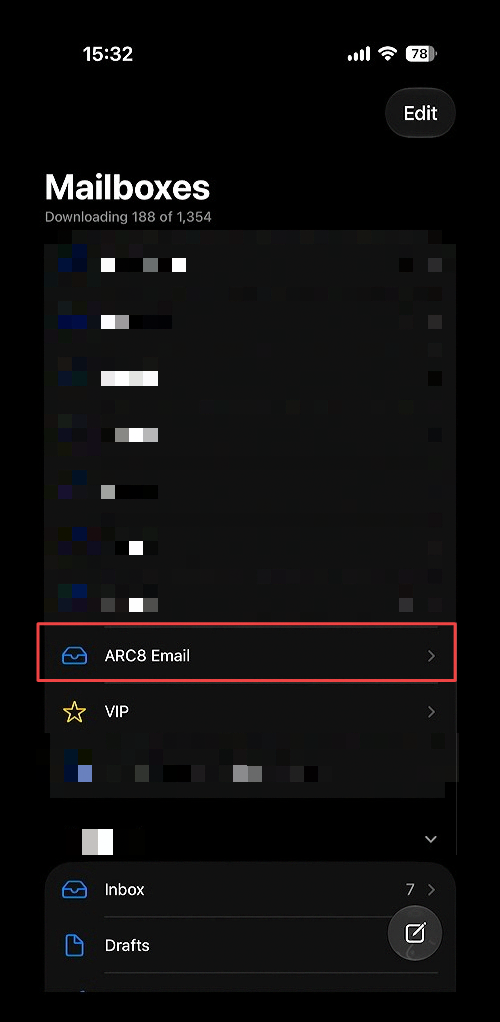
Ensure the email appears in the Mail App as another mailbox below your already configured mailboxes.
No comments to display
No comments to display