
Tasks on Mobile
There are two major options when considering how to have your tasks on the go. There is a mobile app in the app store but it is created by a third-party but has high ratings. An alternative would be to add the website as a web app.
To add an the app you have to create an API Token
1. Open Settings
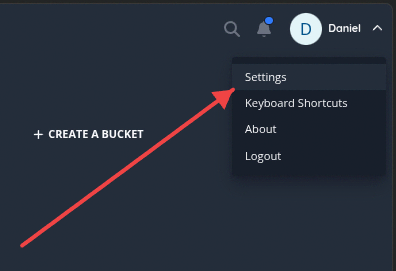
Click the 'Settings' option in the dropdown menu. On tasks.arc8productions.com
2. Click API Tokens
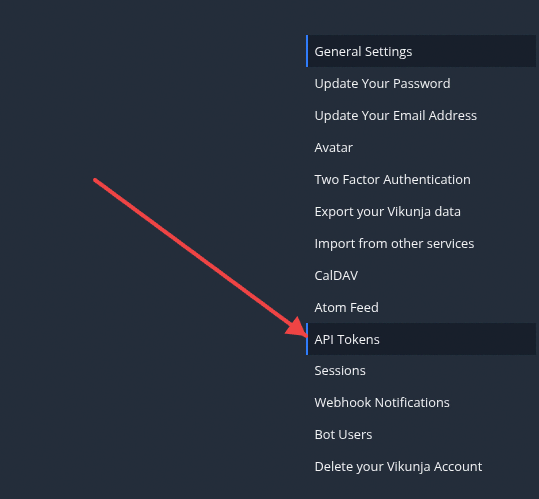
Click the 'API Tokens' option in the settings menu.
3. Create API Token
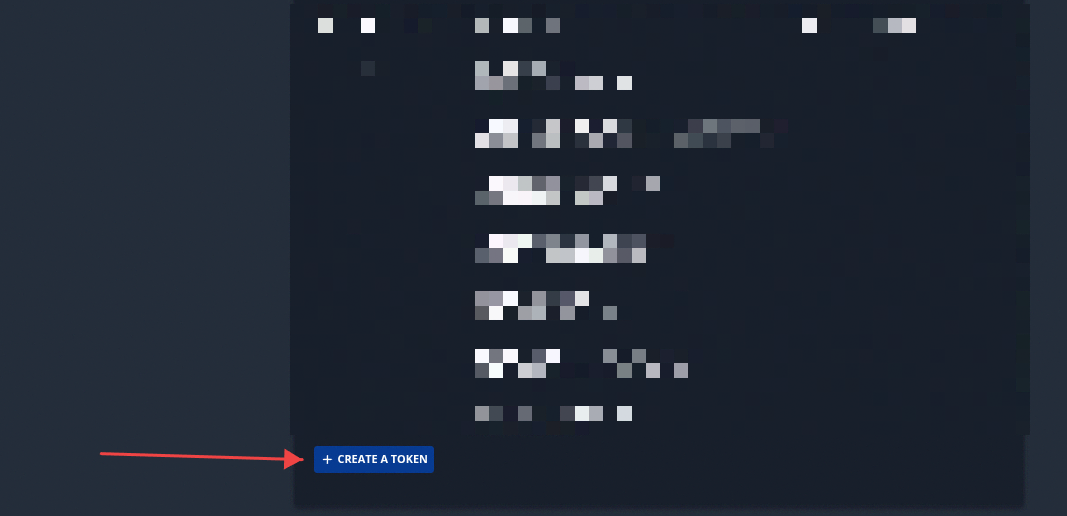
Click the "+ CREATE A TOKEN" button at the bottom of the screen.
4. Select API token access level
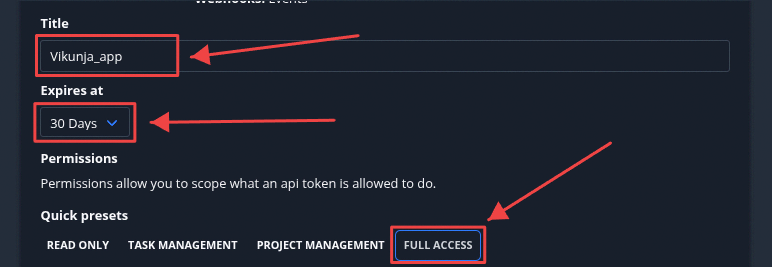
Click the 'FULL ACCESS' button under Quick presets to set the token's permission scope.
5. Create API Token
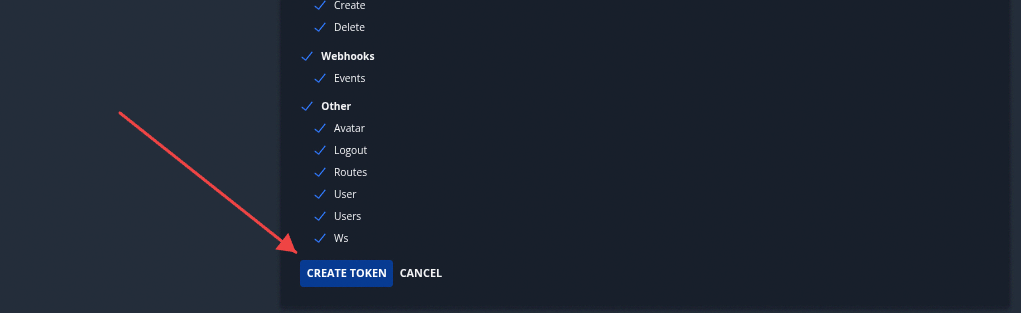
Click the 'CREATE TOKEN' button at the bottom of the screen to generate the API token.
6. Copy API Token
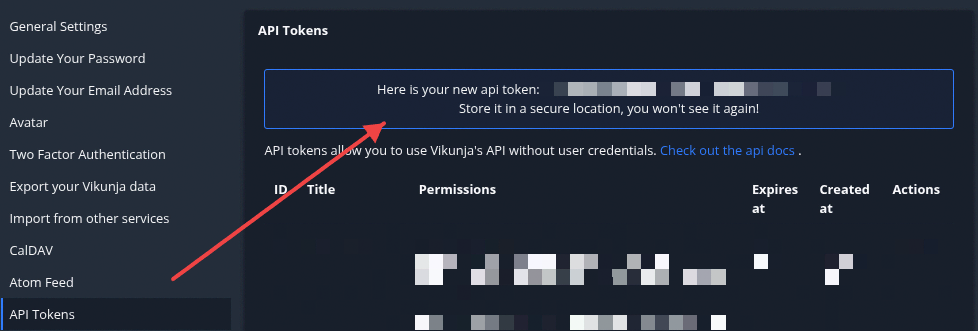
Scroll to the top of the page and select the newly created API Key starting with tk_... and copy it.
7. Open Vikunja app
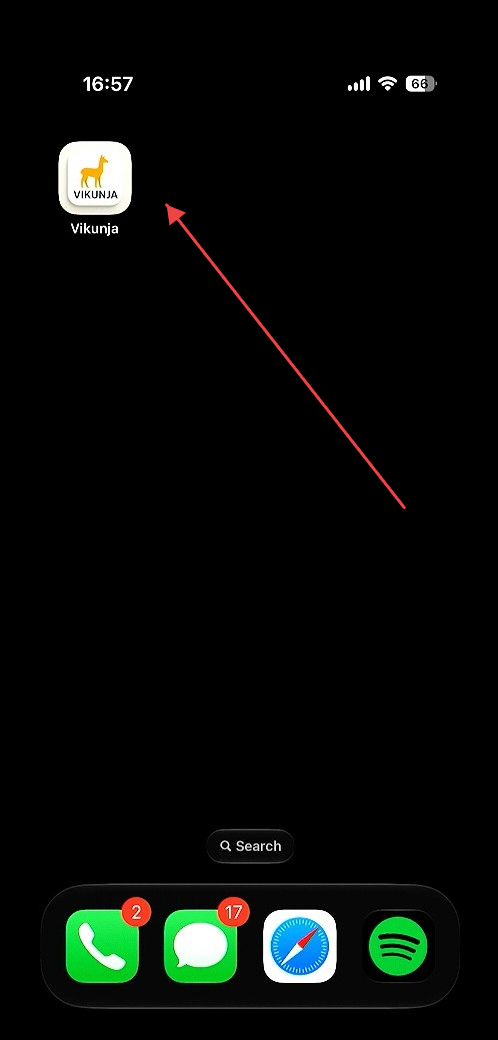
Click the Vikunja app icon on the home screen to launch the application.
8. Connect to Vikunja server
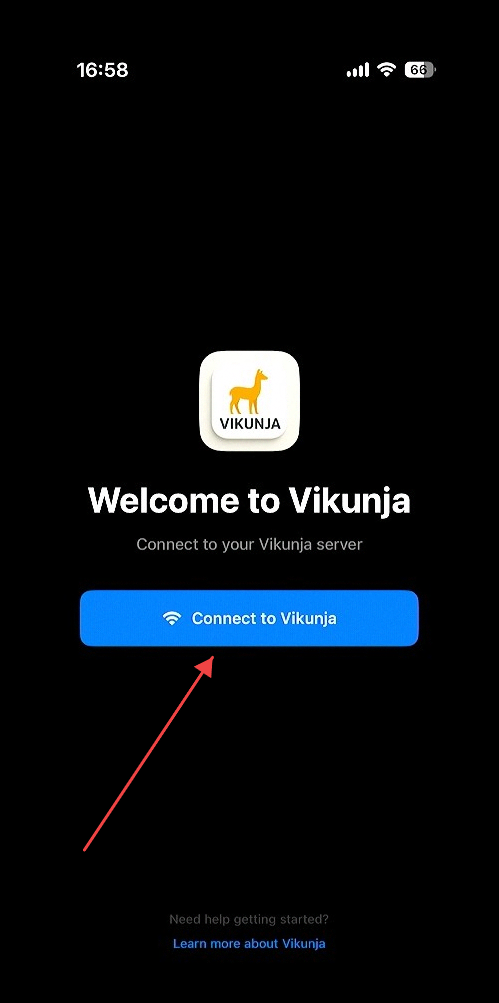
Click the "Connect to Vikunja" button
9. Enter Server URL and API Token
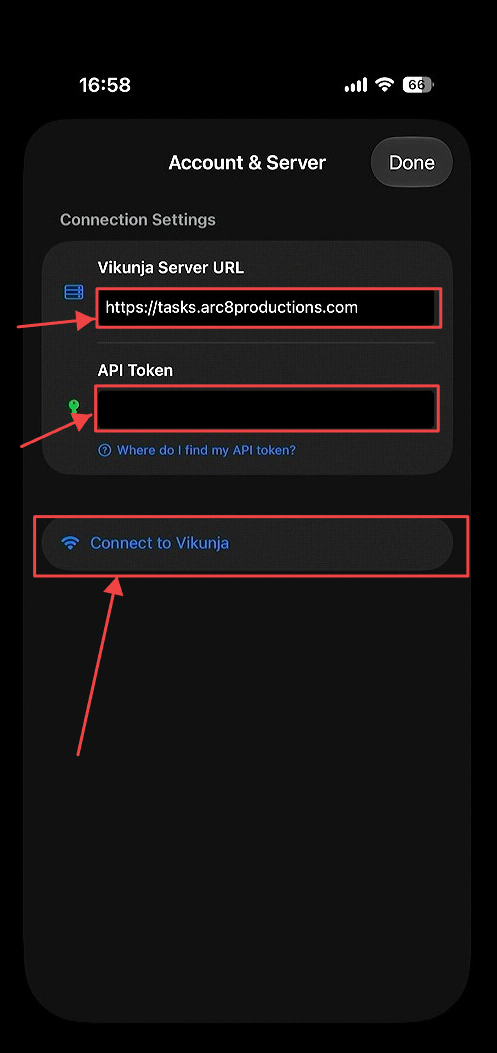
Enter the Server URL into the Server URL field and the API token into the API Token field.
10. Install Vikunja as a web app
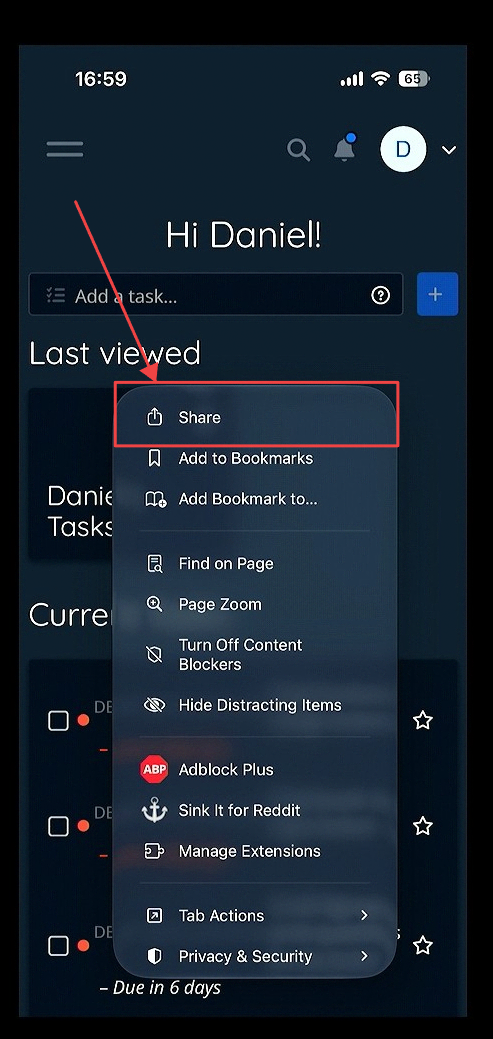
Open your mobile browser and navigate to tasks.arc8productions.com. Access the browser's context menu settings and select Share.
11. Add to Home Screen
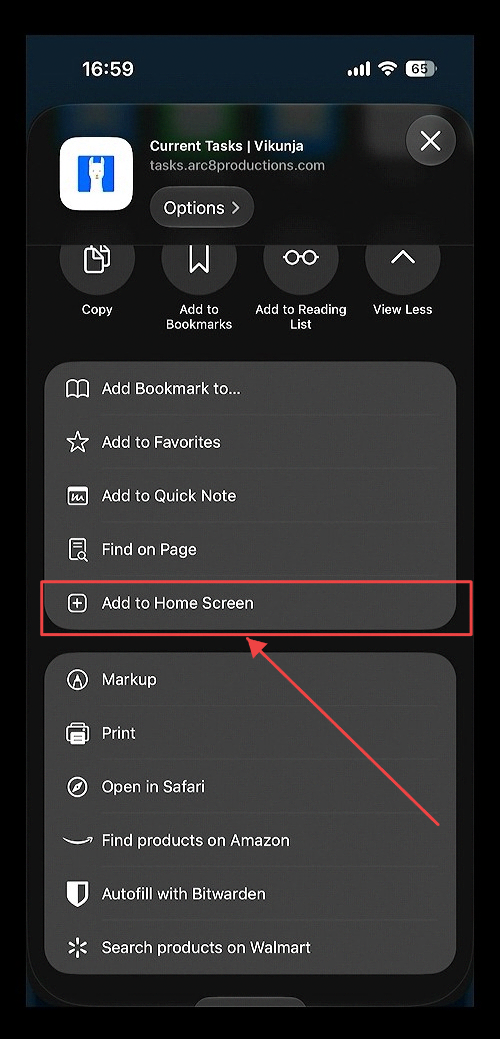
Click the Add to Home Screen option in the browser's context menu.
12. Add to Home Screen Confirmation
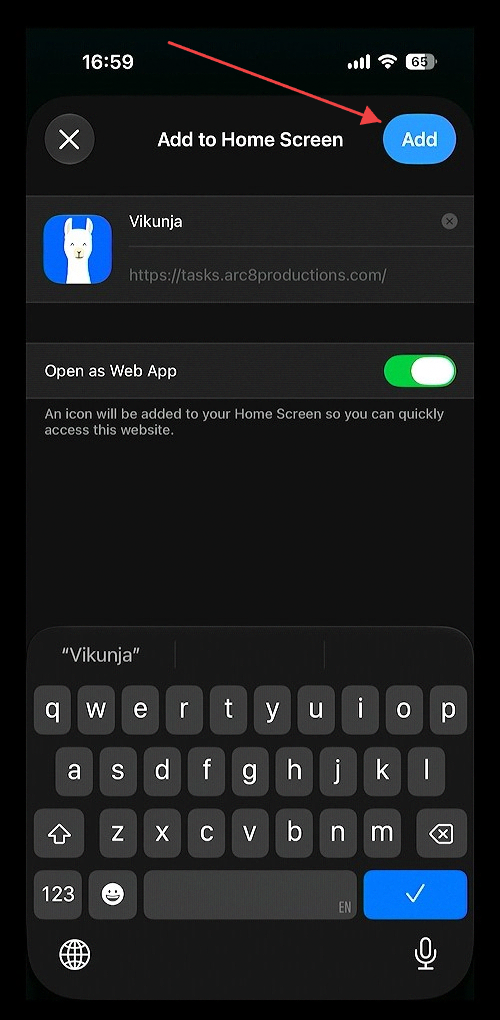
Click the blue 'Add' button in the 'Add to Home Screen' dialog
13. Both Appear as Native Apps
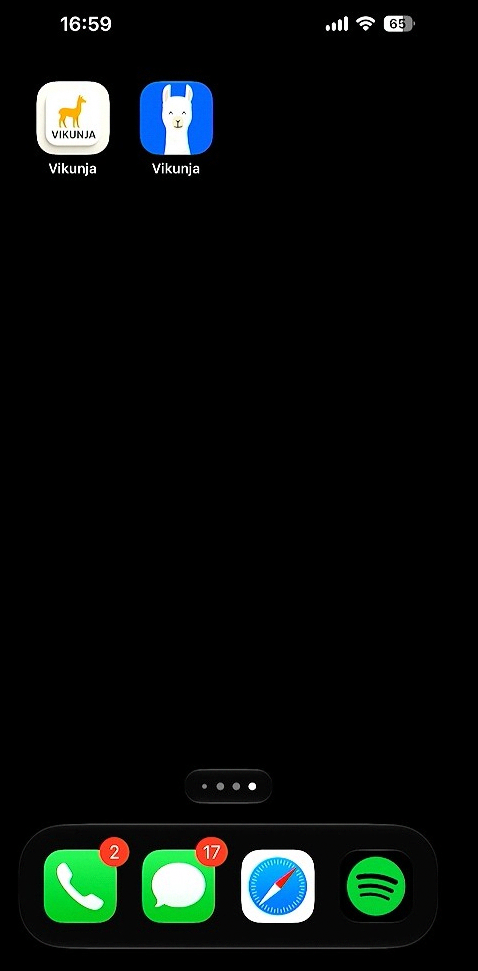
Both options appear as native apps on a mobile device.