# Internal Software and Onboarding Setup
# ARC8 Email and Calendar Setup
A tutorial on how to import the new signature version and add arc8 calendars.
Created 05/20/26 First time doing HTML signature
# Email Signature Import Windows
We are moving to HTML based email signatures. This allows us to embed hyperlinks on phone number, email, and the ARC8 logo. This will eliminate the error of our signature not loading correctly for some client recipients.
Please see the [Synology repository](https://cloud.arc8productions.com/d/f/18S6GN9dbVnh5xzCrURY8YHne82bzBgT) for your email signature file. See also: [eM Client Download](https://www.emclient.com/download?lang=en)
1. In the top left corner open the hamburger menu and select Settings
[](https://arc8wiki.dpgo.org/uploads/images/gallery/2026-07/page001-img02-181x545.png)
2\. On that menu it defaults to expanding the general settings menu. Close "General" and open "Mail"
[](https://arc8wiki.dpgo.org/uploads/images/gallery/2026-07/page001-img04-902x642.png)
3\. Select "Templates and Signatures"
[](https://arc8wiki.dpgo.org/uploads/images/gallery/2026-07/page001-img06-232x647.png)
4\. Select the "Signatures..." button
[](https://arc8wiki.dpgo.org/uploads/images/gallery/2026-07/page001-img08-897x636.png)
5\. Select "Import"
[](https://arc8wiki.dpgo.org/uploads/images/gallery/2026-07/page001-img10-906x80.png)
6\. Select your signature file (e.g. "Daniel\_Perry\_Email\_Signature\_05-20-26.html")
7\. Close the "Signatures..." window and be sure to apply your new signature for new mail, replies, and forwards
[](https://arc8wiki.dpgo.org/uploads/images/gallery/2026-07/page001-img12-906x643.png)
8\. Select Save & Close in the top left corner of the window and congratulations, you new signature has been applied!
# eM Client Calendar Setup
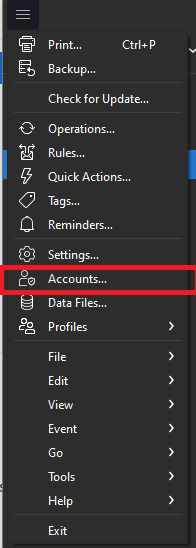
1\. Go to the menu in the top left:
[](https://wiki.arc8productions.com/uploads/images/gallery/2026-07/4Grimage.png)
2\. Add account:
[](https://wiki.arc8productions.com/uploads/images/gallery/2026-07/vd0image.png)
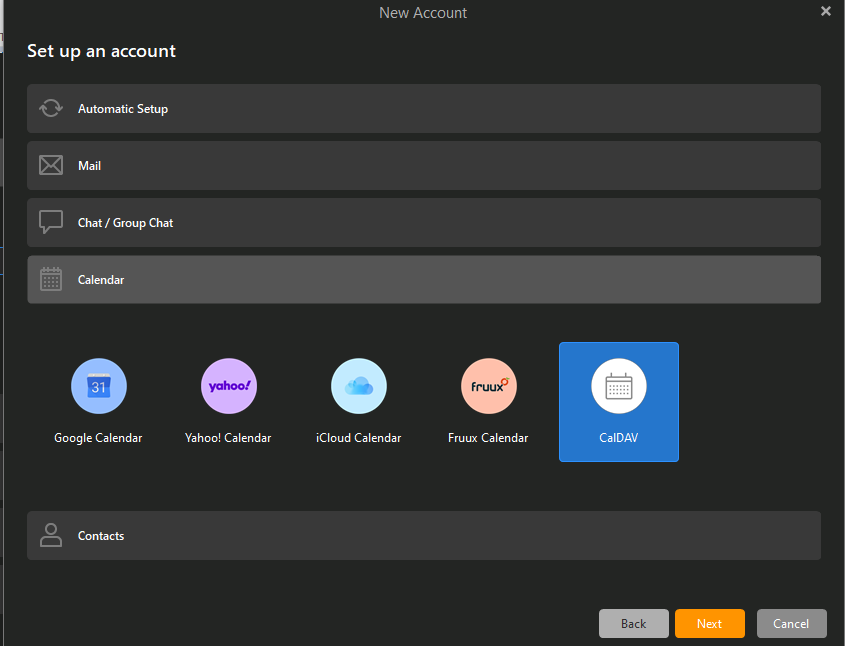
3\. Select calendar and CalDev:
[](https://wiki.arc8productions.com/uploads/images/gallery/2026-07/07himage.png)
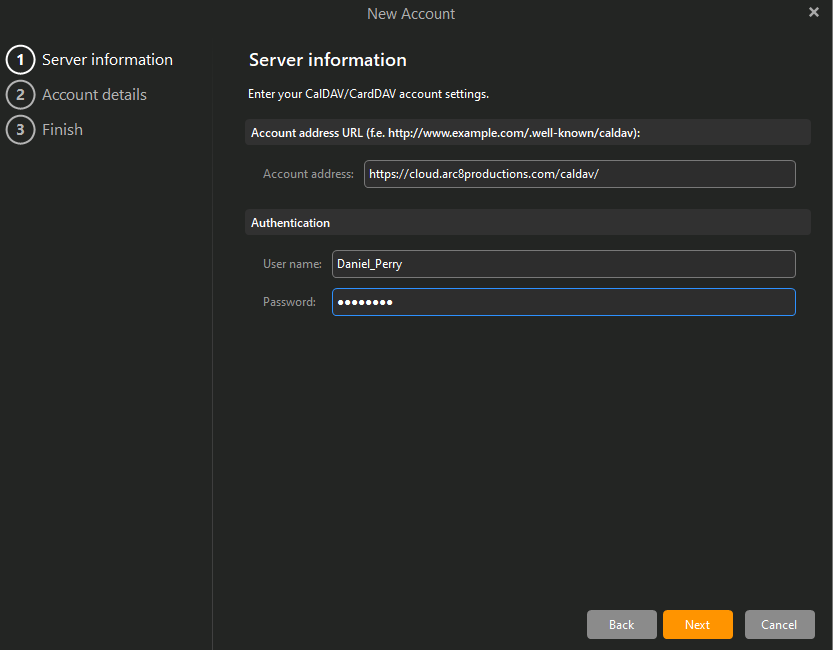
4\. Fill out the information with your Synology login credentials and "https://cloud.arc8productions.com/caldav/":
[](https://wiki.arc8productions.com/uploads/images/gallery/2026-07/dp6image.png)
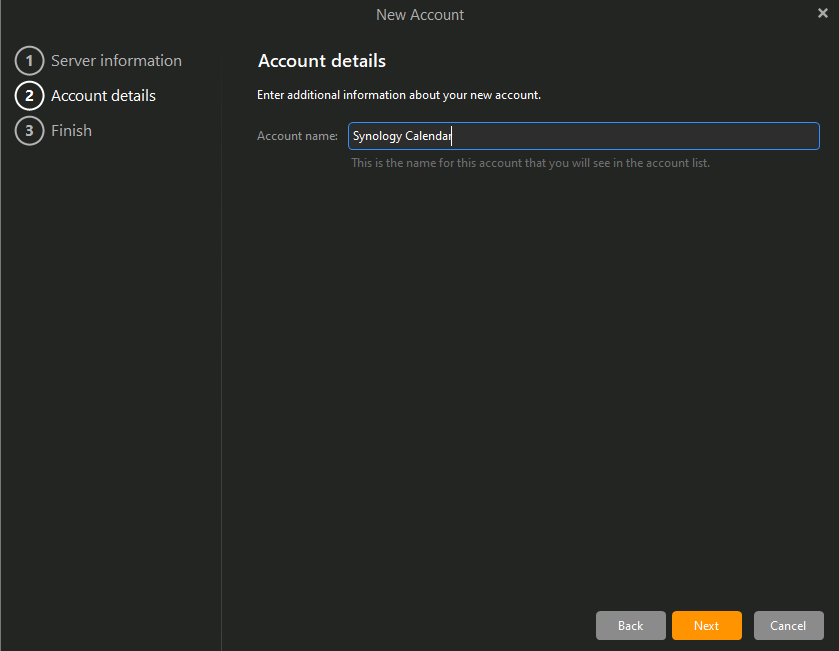
5\. Specify what you want your account to show up as in the calendar view (e.g. Synology Calendar):
[](https://wiki.arc8productions.com/uploads/images/gallery/2026-07/vSqimage.png)
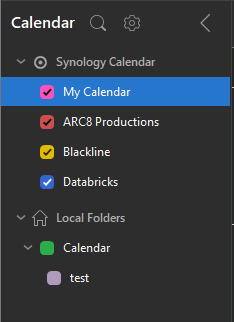
6\. Click Finished and it should authenticate and show up in your calendar view
[](https://wiki.arc8productions.com/uploads/images/gallery/2026-07/nBYimage.png)
# ARC8 Email Setup On iOS
This is a tutorial to setup your ARC8 email with the native iCloud Mail app
## 1. Open Settings and select Apps
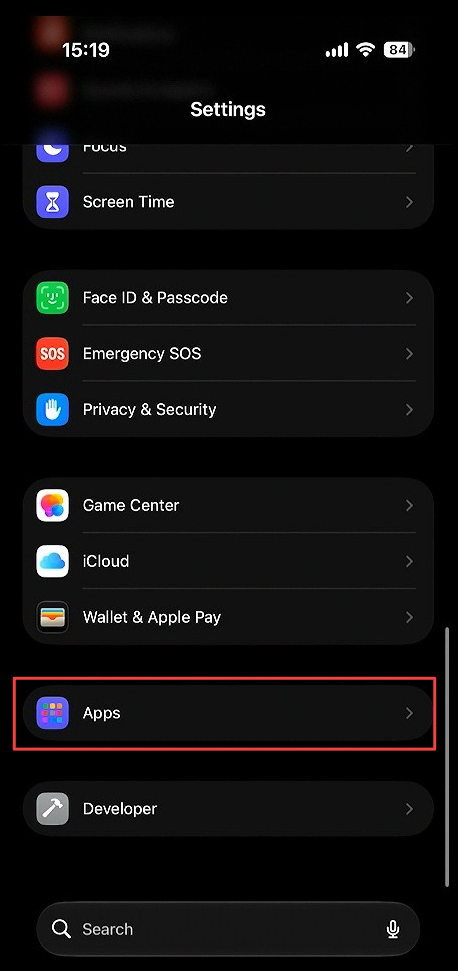 Open **Settings**. Scroll to the bottom and select **Apps**.
## 2. Select Mail
Open **Settings**. Scroll to the bottom and select **Apps**.
## 2. Select Mail
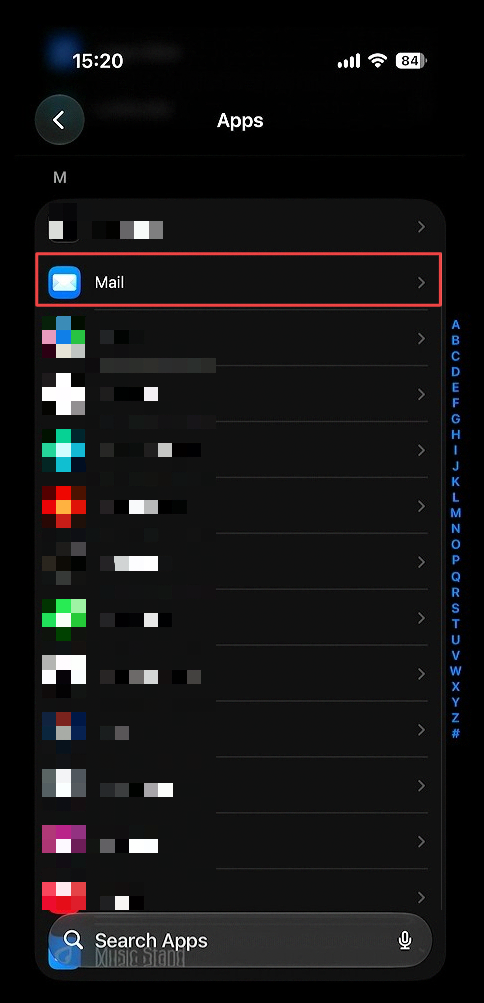 Scroll down and click **Mail**.
## 3. Selct Mail Accounts
Scroll down and click **Mail**.
## 3. Selct Mail Accounts
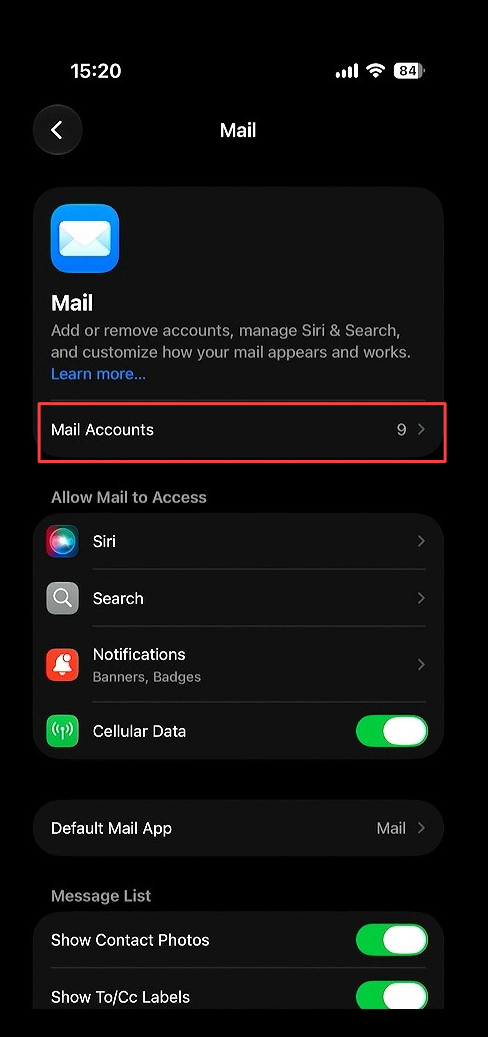 Select the **mail accounts** sub menu option
## 4. Select Add account
Select the **mail accounts** sub menu option
## 4. Select Add account
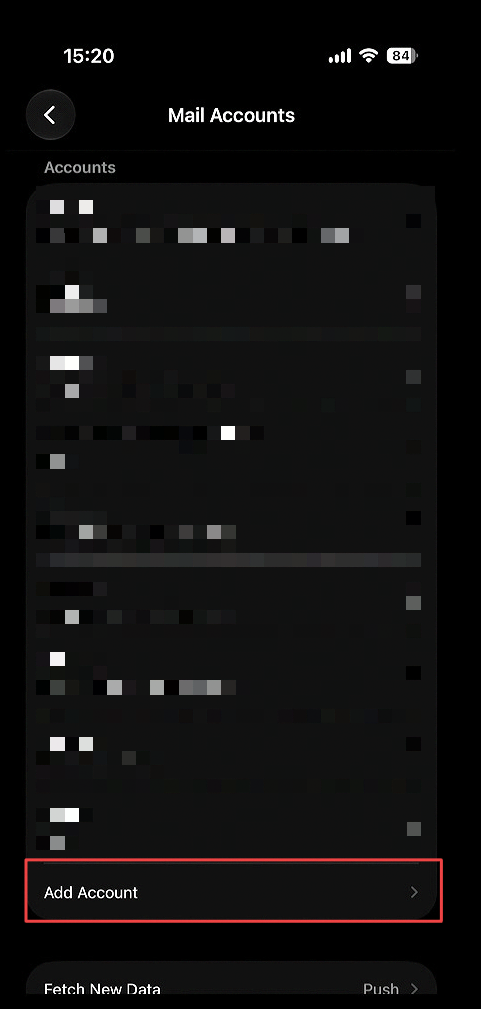 Below your already added accounts, select **Add Account**.
## 5. Enter in your ARC8 Email
Below your already added accounts, select **Add Account**.
## 5. Enter in your ARC8 Email
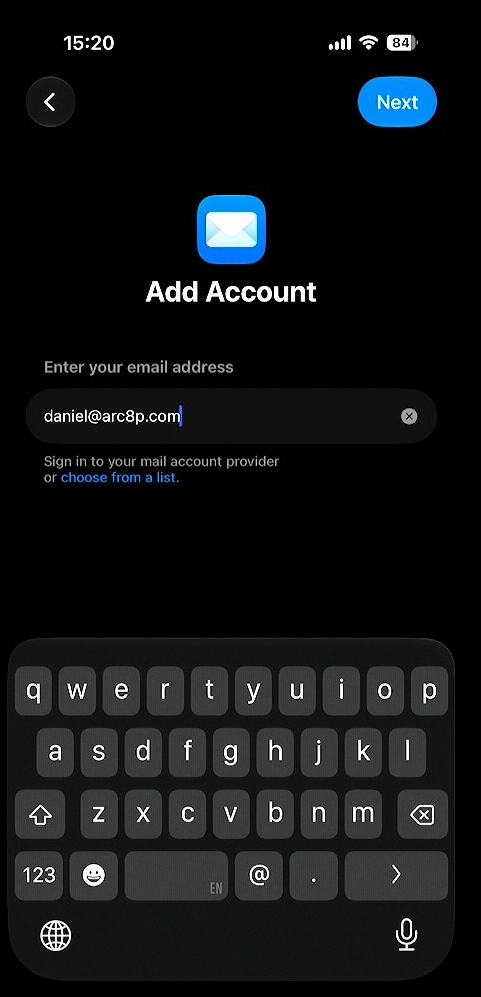 Fill in your ARC8 email then click **Next**.
## 6. Select Add Other Account
Fill in your ARC8 email then click **Next**.
## 6. Select Add Other Account
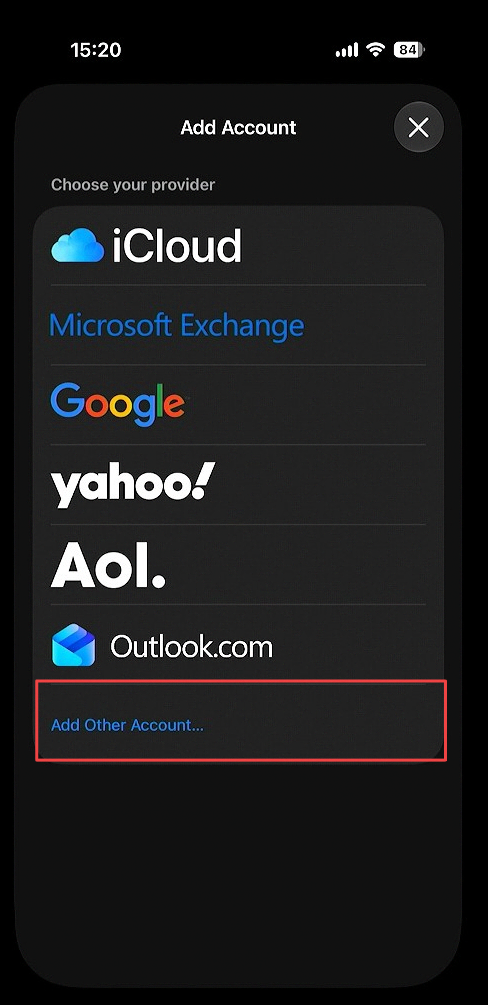 Click **Add Other Account**.
## 7. Select Mail Account
Click **Add Other Account**.
## 7. Select Mail Account
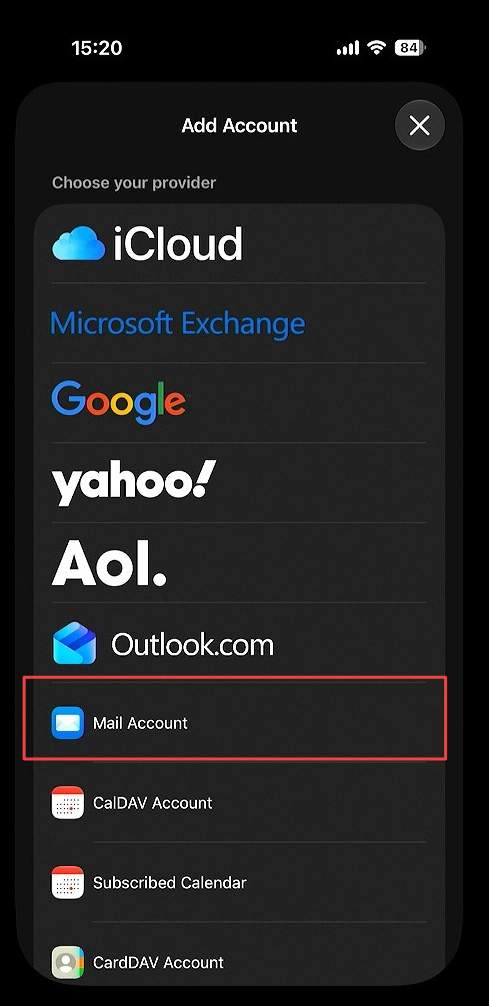 Select **Mail Account**.
## 8. Fill in IMAP settings
Select **Mail Account**.
## 8. Fill in IMAP settings
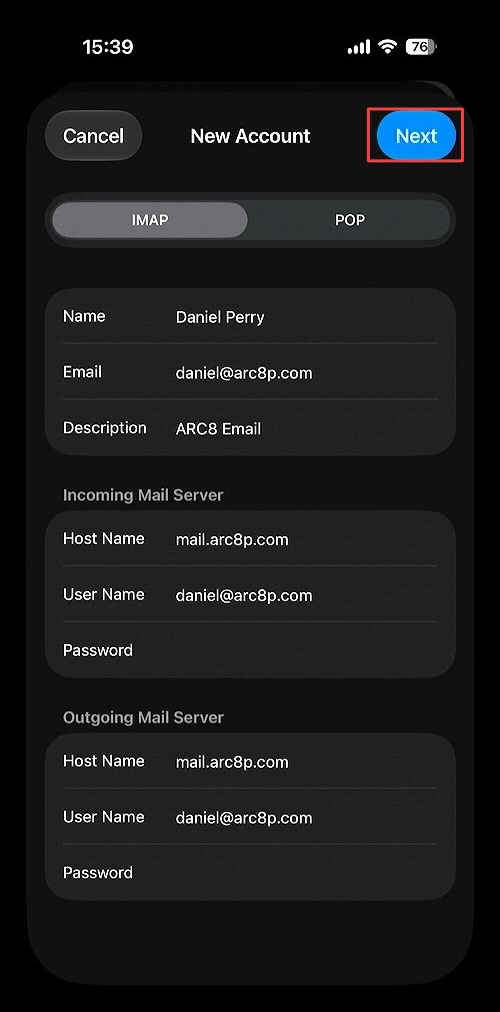 Enter all account information and click **Next**.
Set **Host Name** to mail.arc8p.com.
## 9. Save IMAP settings
Enter all account information and click **Next**.
Set **Host Name** to mail.arc8p.com.
## 9. Save IMAP settings
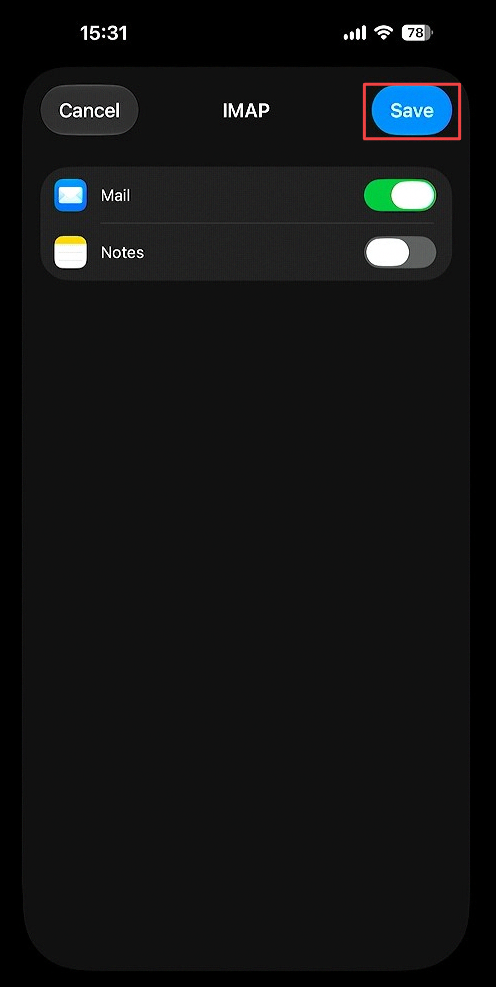 Click **Save** button at the top right corner of the screen
## 10. Select Mail
Click **Save** button at the top right corner of the screen
## 10. Select Mail
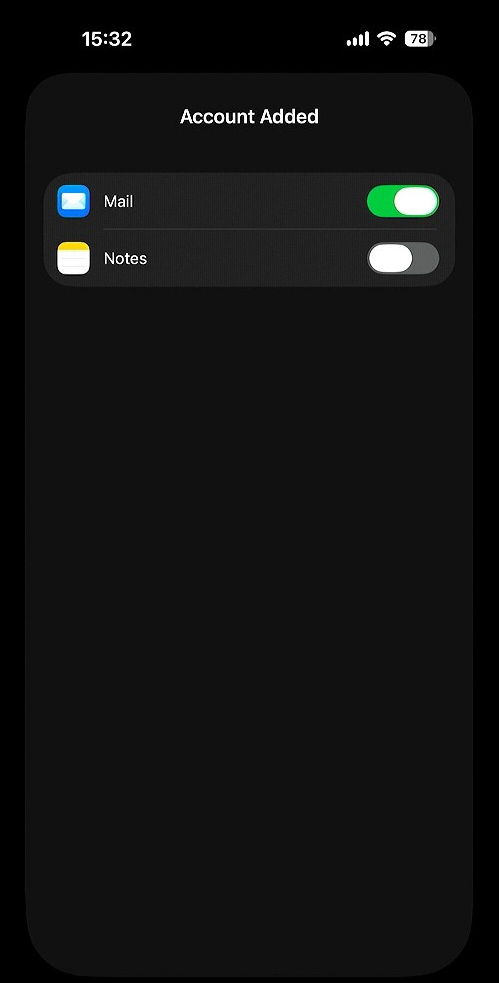 Select **Mail** to sync your ARC8 mail
Turning on Notes will only sync your iCloud Notes App with other iCloud devices also logged in on your ARC8 email
## 11. Email Appears in Mail App
Select **Mail** to sync your ARC8 mail
Turning on Notes will only sync your iCloud Notes App with other iCloud devices also logged in on your ARC8 email
## 11. Email Appears in Mail App
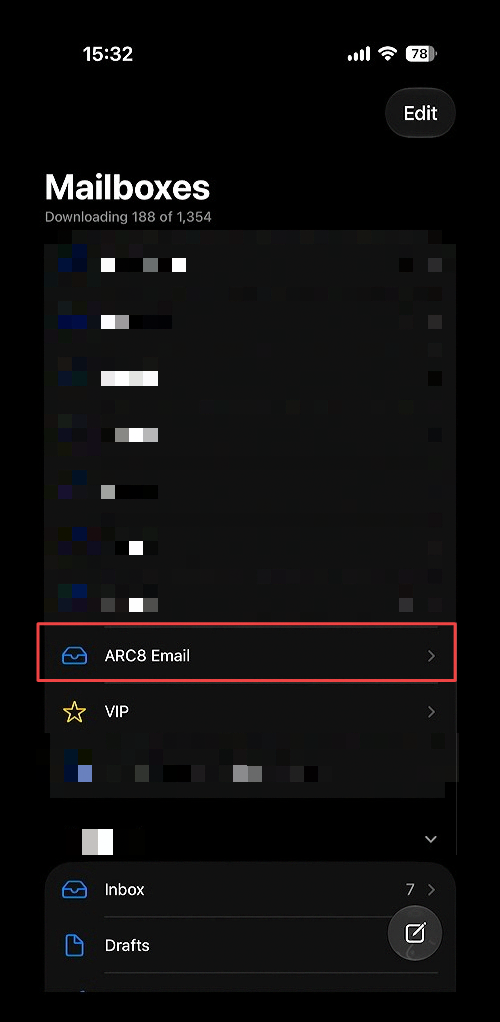 Ensure the email appears in the **Mail App** as another mailbox below your already configured mailboxes.
# ARC8 Tasks (Vikunja)
# Tasks on Mobile
There are two major options when considering how to have your tasks on the go. There is a mobile app in the app store but it is created by a third-party but has high ratings. An alternative would be to add the website as a web app.
To add an the app you have to create an API Token
## 1. Open Settings
Ensure the email appears in the **Mail App** as another mailbox below your already configured mailboxes.
# ARC8 Tasks (Vikunja)
# Tasks on Mobile
There are two major options when considering how to have your tasks on the go. There is a mobile app in the app store but it is created by a third-party but has high ratings. An alternative would be to add the website as a web app.
To add an the app you have to create an API Token
## 1. Open Settings
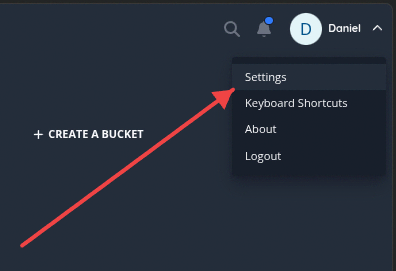 Click the 'Settings' option in the dropdown menu. On [tasks.arc8productions.com](https://tasks.arc8productions.com/)
## 2. Click API Tokens
Click the 'Settings' option in the dropdown menu. On [tasks.arc8productions.com](https://tasks.arc8productions.com/)
## 2. Click API Tokens
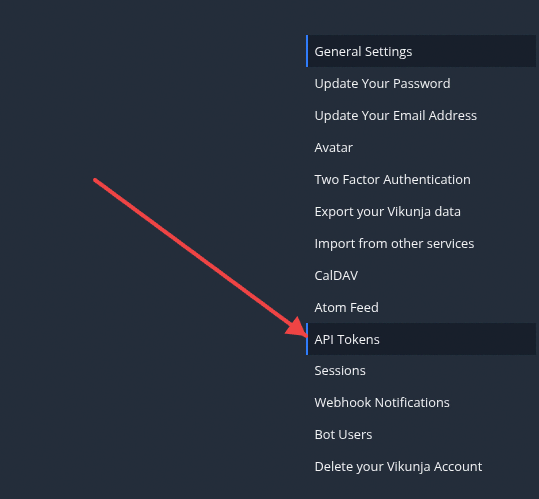 Click the 'API Tokens' option in the settings menu.
## 3. Create API Token
Click the 'API Tokens' option in the settings menu.
## 3. Create API Token
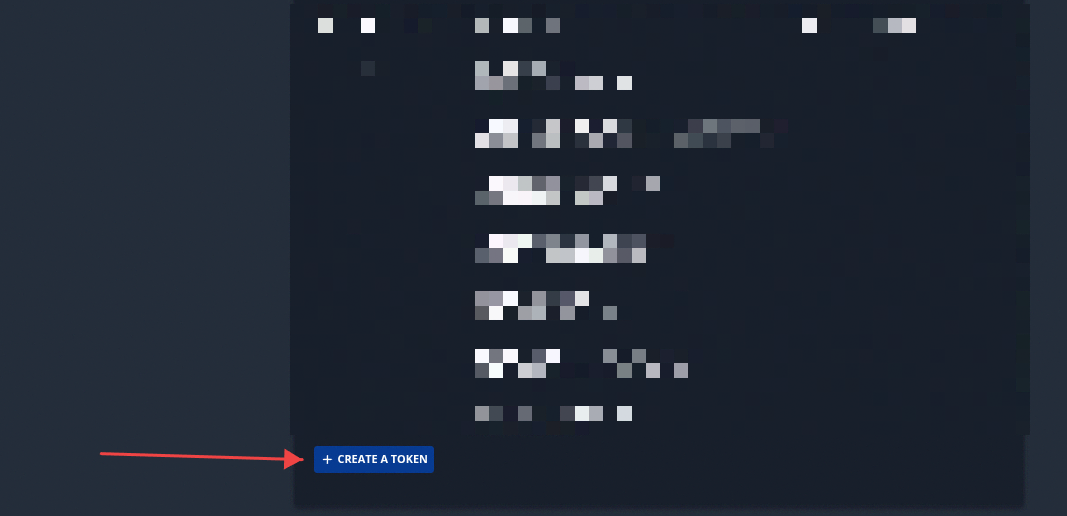 Click the "+ CREATE A TOKEN" button at the bottom of the screen.
## 4. Select API token access level
Click the "+ CREATE A TOKEN" button at the bottom of the screen.
## 4. Select API token access level
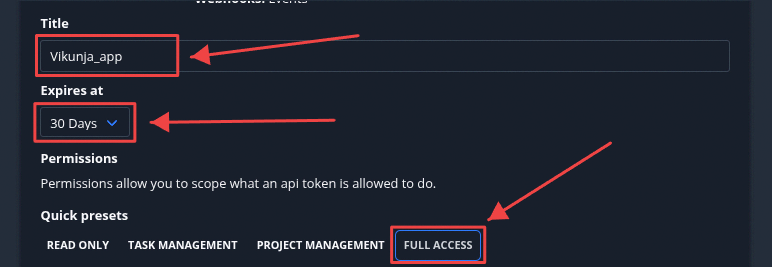 Click the 'FULL ACCESS' button under Quick presets to set the token's permission scope.
## 5. Create API Token
Click the 'FULL ACCESS' button under Quick presets to set the token's permission scope.
## 5. Create API Token
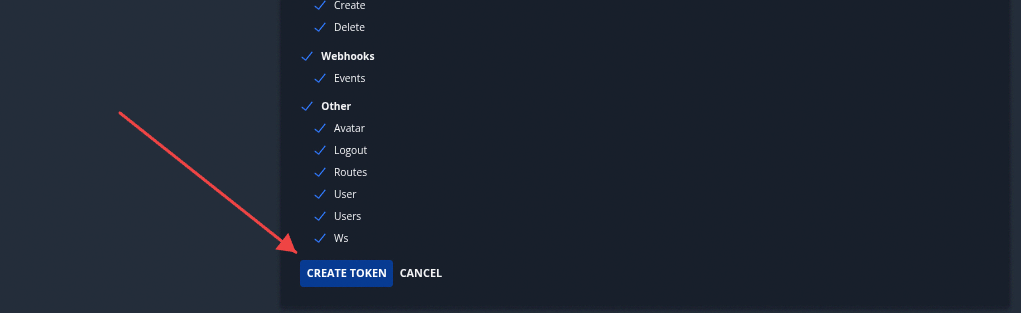 Click the 'CREATE TOKEN' button at the bottom of the screen to generate the API token.
## 6. Copy API Token
Click the 'CREATE TOKEN' button at the bottom of the screen to generate the API token.
## 6. Copy API Token
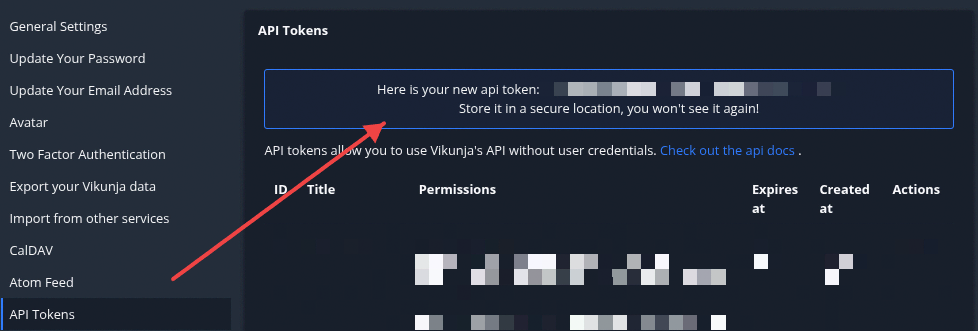 Scroll to the top of the page and select the newly created **API Key** starting with tk_... and copy it.
## 7. Open Vikunja app
Scroll to the top of the page and select the newly created **API Key** starting with tk_... and copy it.
## 7. Open Vikunja app
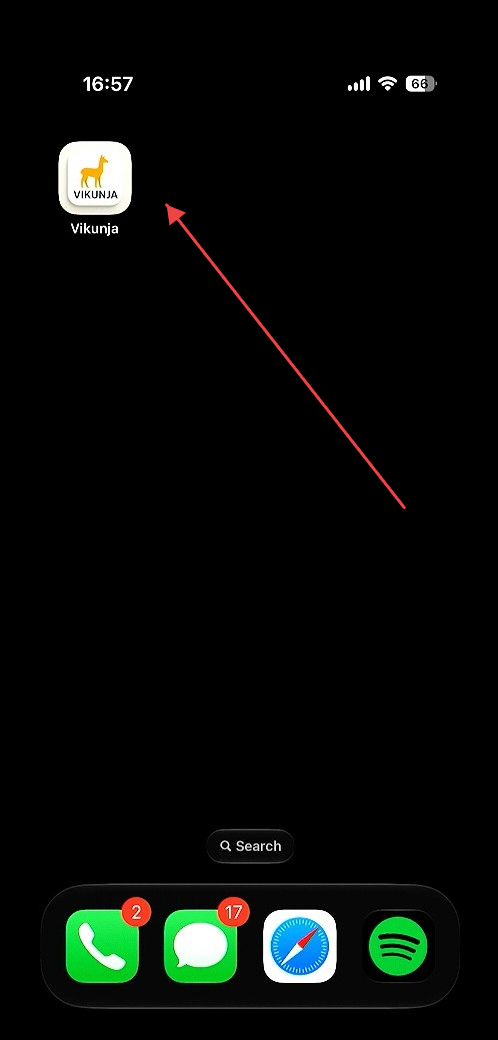 Click the Vikunja app icon on the home screen to launch the application.
## 8. Connect to Vikunja server
Click the Vikunja app icon on the home screen to launch the application.
## 8. Connect to Vikunja server
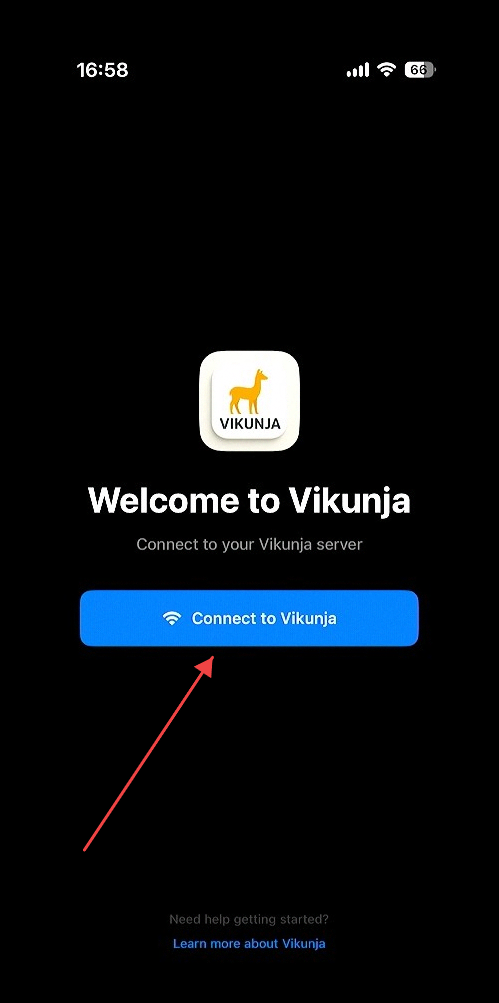 Click the "Connect to Vikunja" button
## 9. Enter Server URL and API Token
Click the "Connect to Vikunja" button
## 9. Enter Server URL and API Token
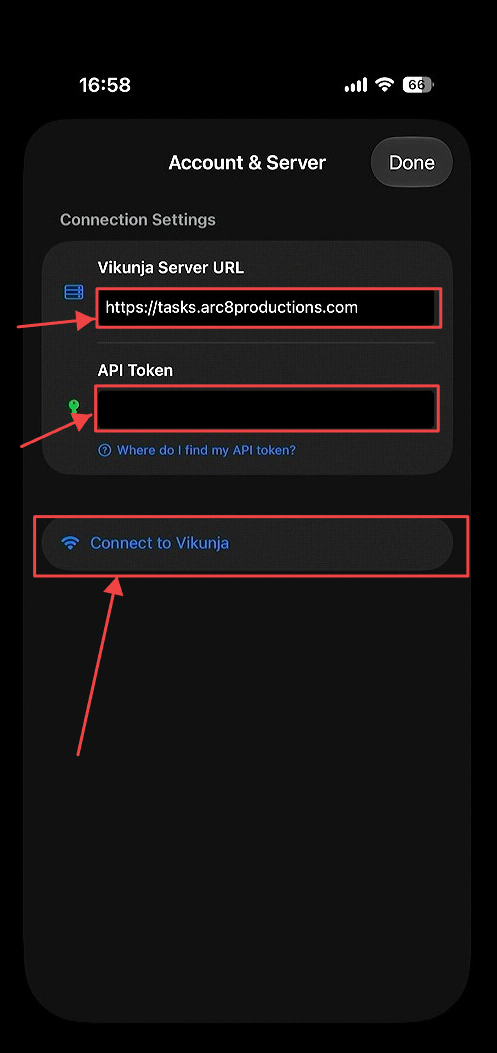 Enter the Server URL into the **Server URL** field and the API token into the **API Token** field.
## 10. Install Vikunja as a web app
Enter the Server URL into the **Server URL** field and the API token into the **API Token** field.
## 10. Install Vikunja as a web app
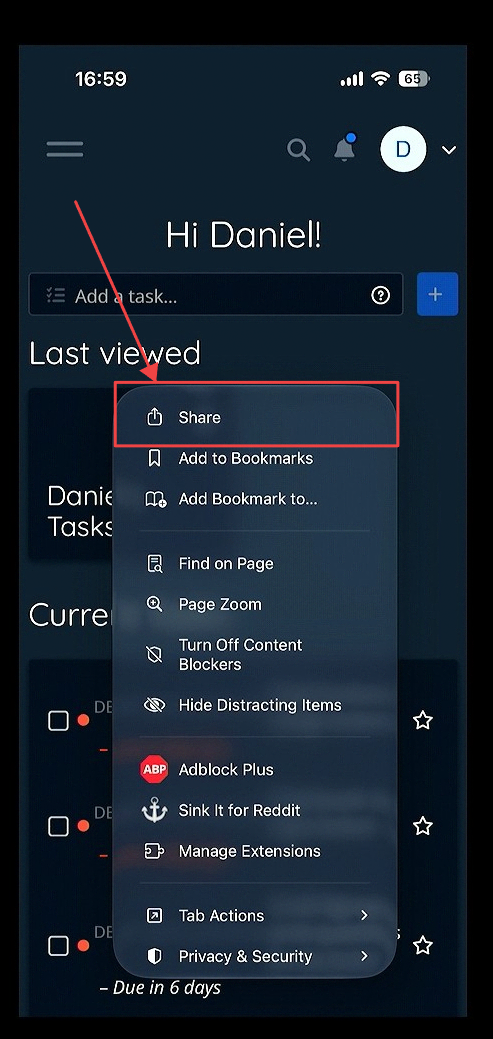 Open your mobile browser and navigate to tasks.arc8productions.com. Access the browser's **context menu settings** and select **Share**.
## 11. Add to Home Screen
Open your mobile browser and navigate to tasks.arc8productions.com. Access the browser's **context menu settings** and select **Share**.
## 11. Add to Home Screen
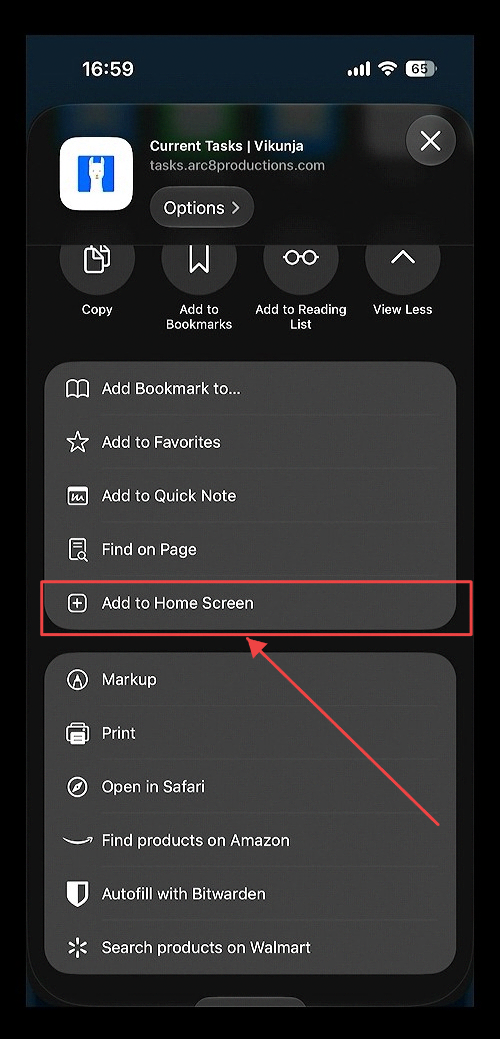 Click the **Add to Home Screen** option in the browser's context menu.
## 12. Add to Home Screen Confirmation
Click the **Add to Home Screen** option in the browser's context menu.
## 12. Add to Home Screen Confirmation
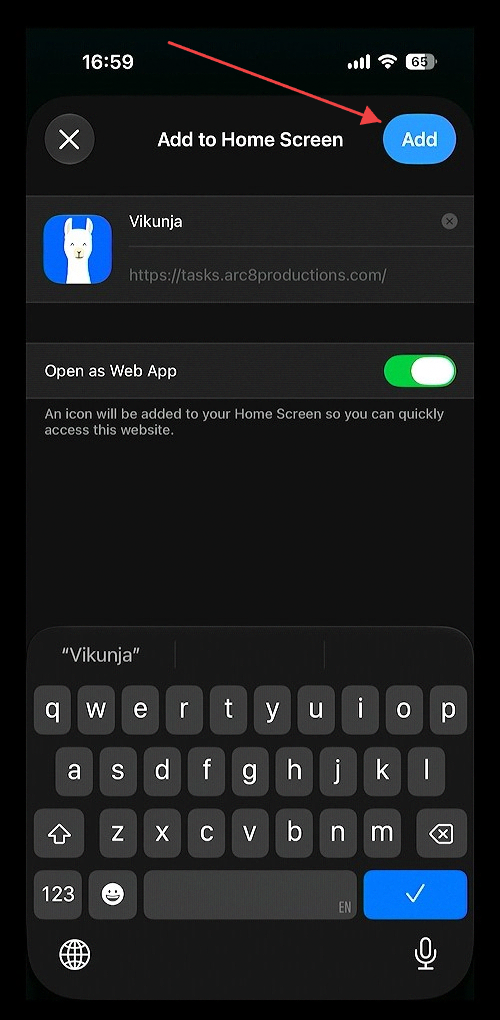 Click the blue 'Add' button in the 'Add to Home Screen' dialog
## 13. Both Appear as Native Apps
Click the blue 'Add' button in the 'Add to Home Screen' dialog
## 13. Both Appear as Native Apps
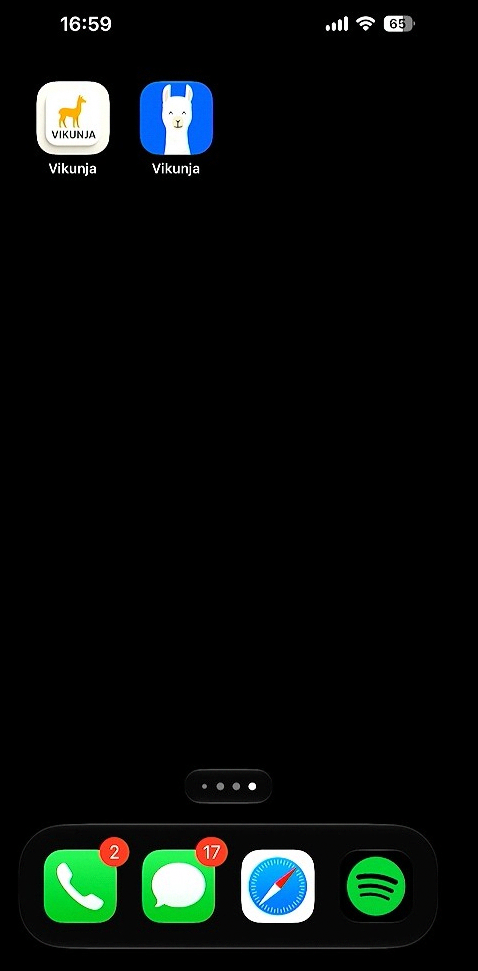 Both options appear as native apps on a mobile device.