# ARC8 Tasks (Vikunja)
# Tasks on Mobile
There are two major options when considering how to have your tasks on the go. There is a mobile app in the app store but it is created by a third-party but has high ratings. An alternative would be to add the website as a web app.
To add an the app you have to create an API Token
## 1. Open Settings
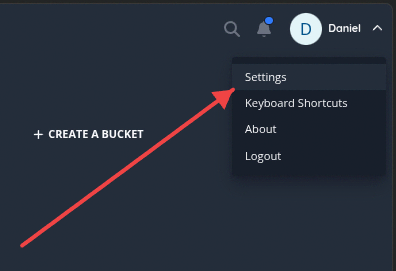 Click the 'Settings' option in the dropdown menu. On [tasks.arc8productions.com](https://tasks.arc8productions.com/)
## 2. Click API Tokens
Click the 'Settings' option in the dropdown menu. On [tasks.arc8productions.com](https://tasks.arc8productions.com/)
## 2. Click API Tokens
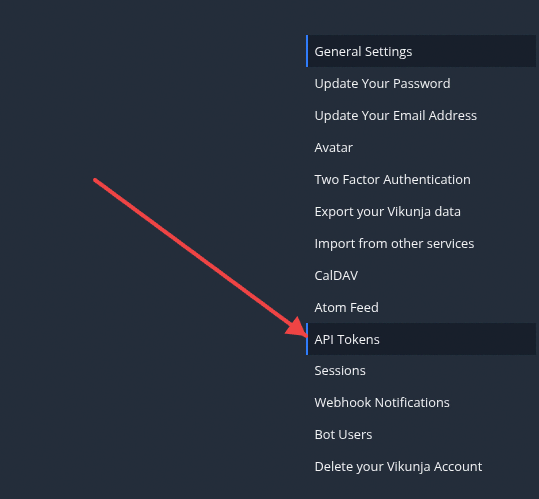 Click the 'API Tokens' option in the settings menu.
## 3. Create API Token
Click the 'API Tokens' option in the settings menu.
## 3. Create API Token
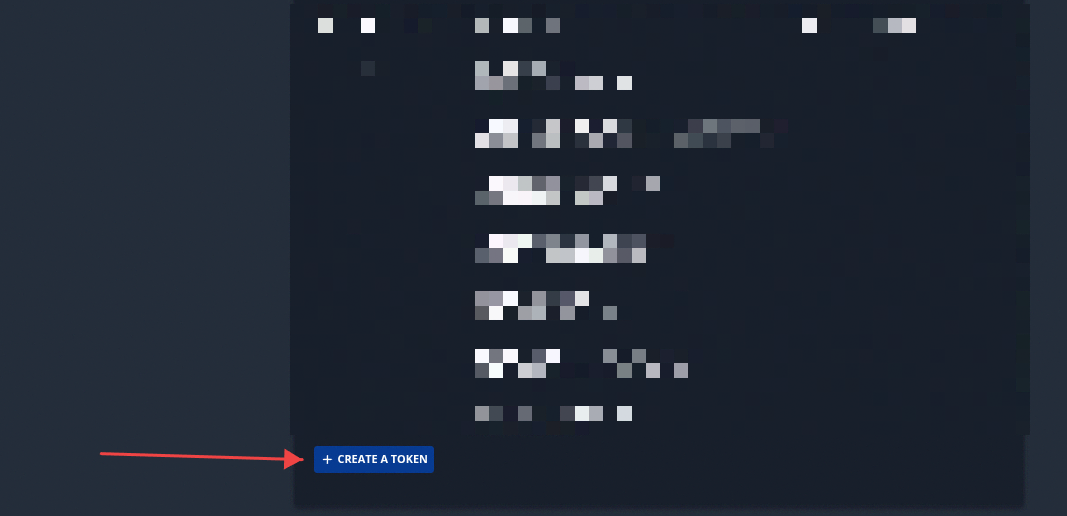 Click the "+ CREATE A TOKEN" button at the bottom of the screen.
## 4. Select API token access level
Click the "+ CREATE A TOKEN" button at the bottom of the screen.
## 4. Select API token access level
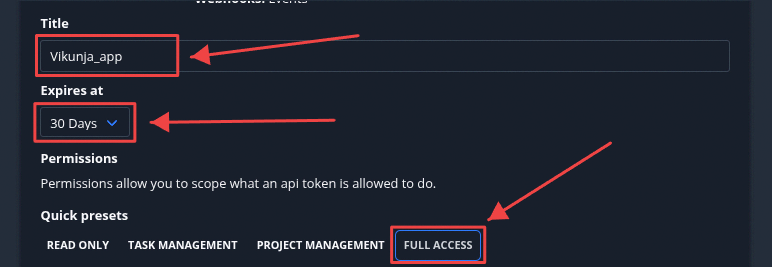 Click the 'FULL ACCESS' button under Quick presets to set the token's permission scope.
## 5. Create API Token
Click the 'FULL ACCESS' button under Quick presets to set the token's permission scope.
## 5. Create API Token
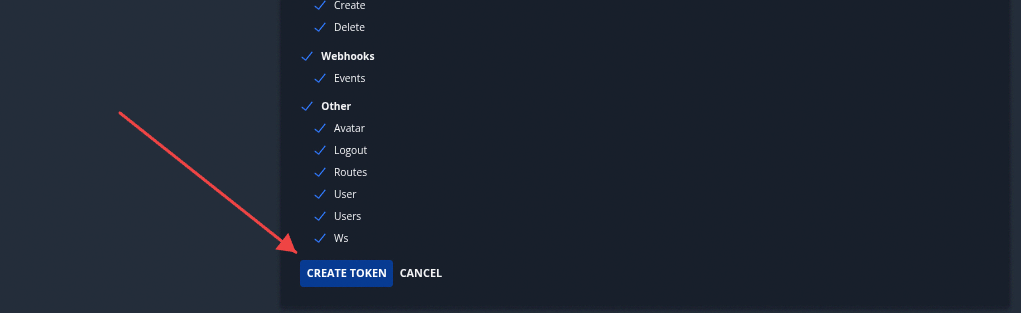 Click the 'CREATE TOKEN' button at the bottom of the screen to generate the API token.
## 6. Copy API Token
Click the 'CREATE TOKEN' button at the bottom of the screen to generate the API token.
## 6. Copy API Token
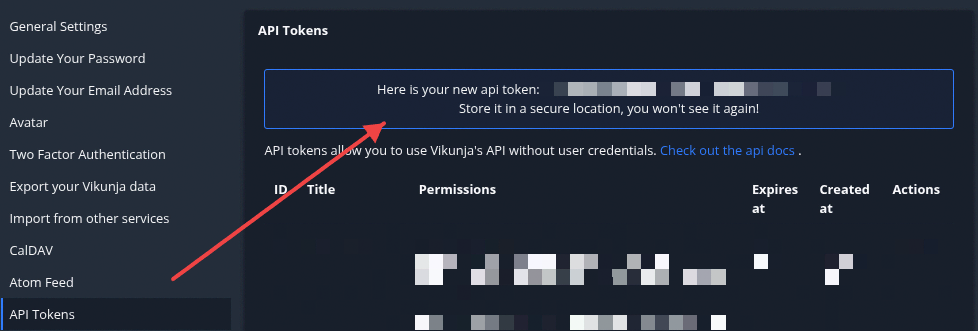 Scroll to the top of the page and select the newly created **API Key** starting with tk_... and copy it.
## 7. Open Vikunja app
Scroll to the top of the page and select the newly created **API Key** starting with tk_... and copy it.
## 7. Open Vikunja app
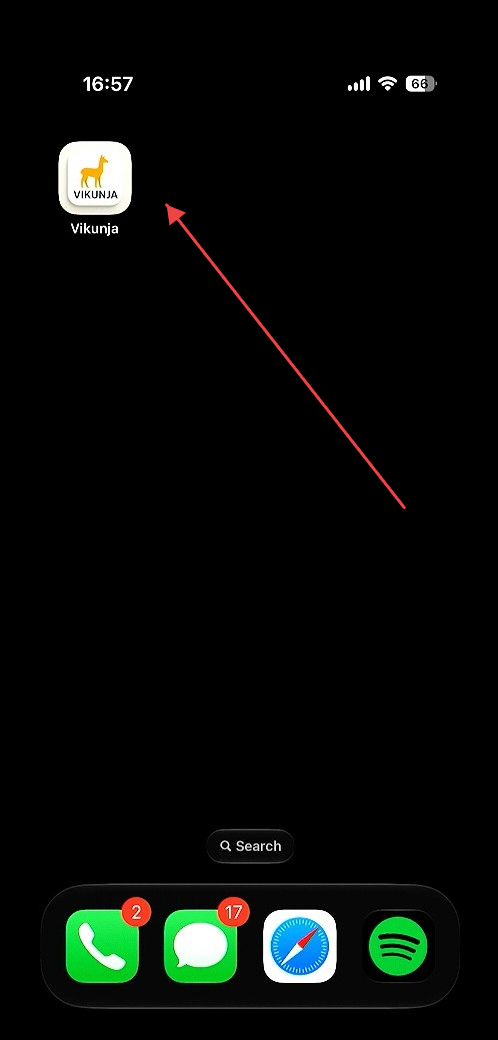 Click the Vikunja app icon on the home screen to launch the application.
## 8. Connect to Vikunja server
Click the Vikunja app icon on the home screen to launch the application.
## 8. Connect to Vikunja server
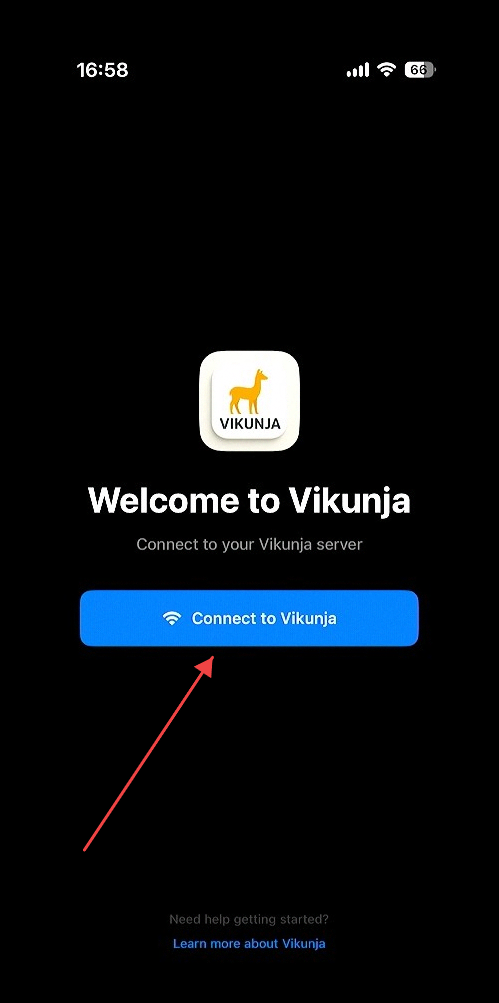 Click the "Connect to Vikunja" button
## 9. Enter Server URL and API Token
Click the "Connect to Vikunja" button
## 9. Enter Server URL and API Token
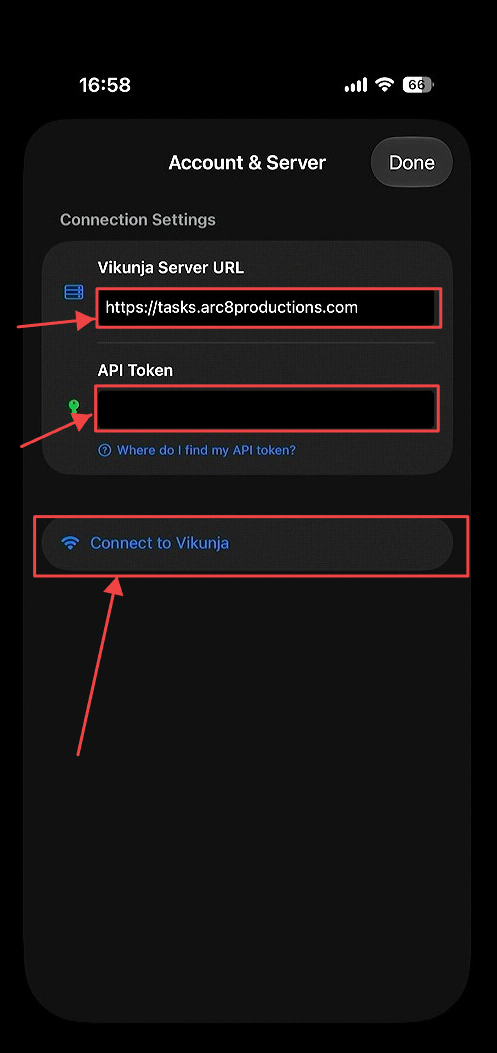 Enter the Server URL into the **Server URL** field and the API token into the **API Token** field.
## 10. Install Vikunja as a web app
Enter the Server URL into the **Server URL** field and the API token into the **API Token** field.
## 10. Install Vikunja as a web app
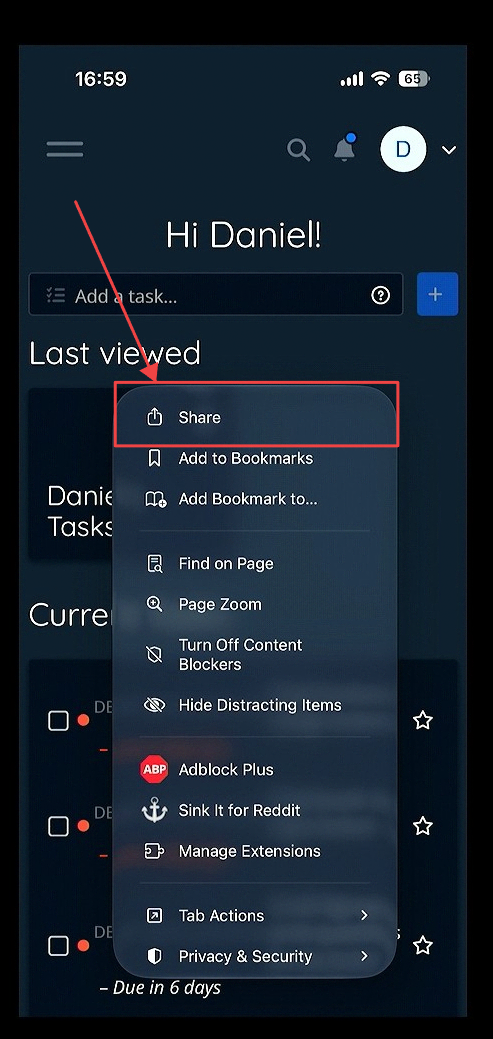 Open your mobile browser and navigate to tasks.arc8productions.com. Access the browser's **context menu settings** and select **Share**.
## 11. Add to Home Screen
Open your mobile browser and navigate to tasks.arc8productions.com. Access the browser's **context menu settings** and select **Share**.
## 11. Add to Home Screen
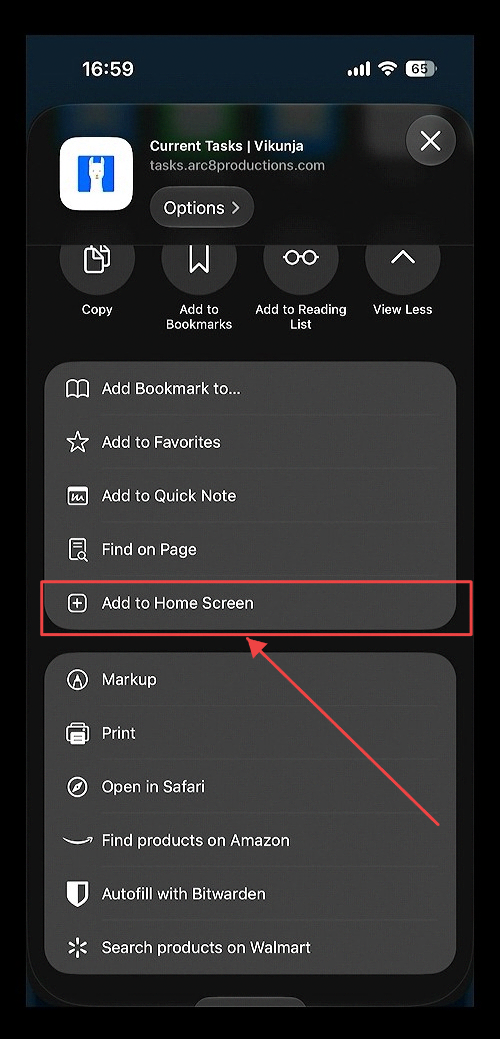 Click the **Add to Home Screen** option in the browser's context menu.
## 12. Add to Home Screen Confirmation
Click the **Add to Home Screen** option in the browser's context menu.
## 12. Add to Home Screen Confirmation
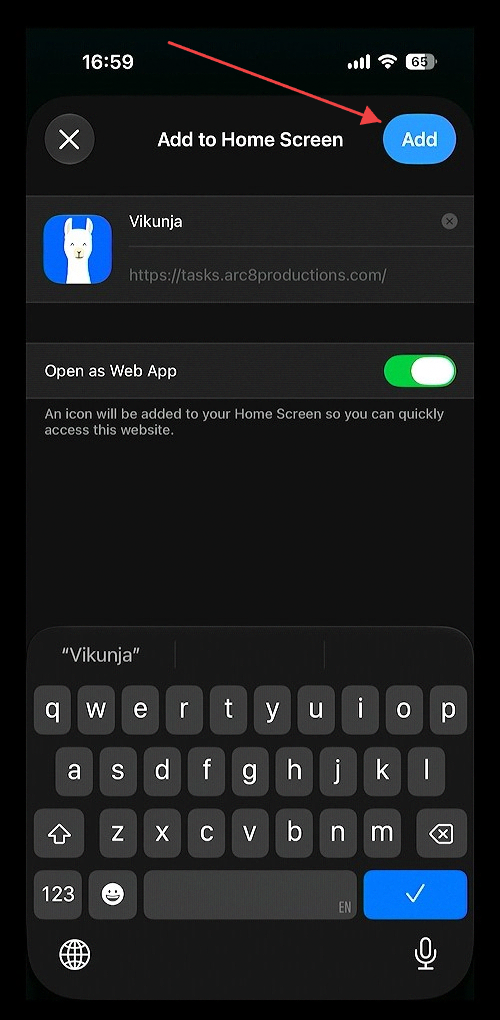 Click the blue 'Add' button in the 'Add to Home Screen' dialog
## 13. Both Appear as Native Apps
Click the blue 'Add' button in the 'Add to Home Screen' dialog
## 13. Both Appear as Native Apps
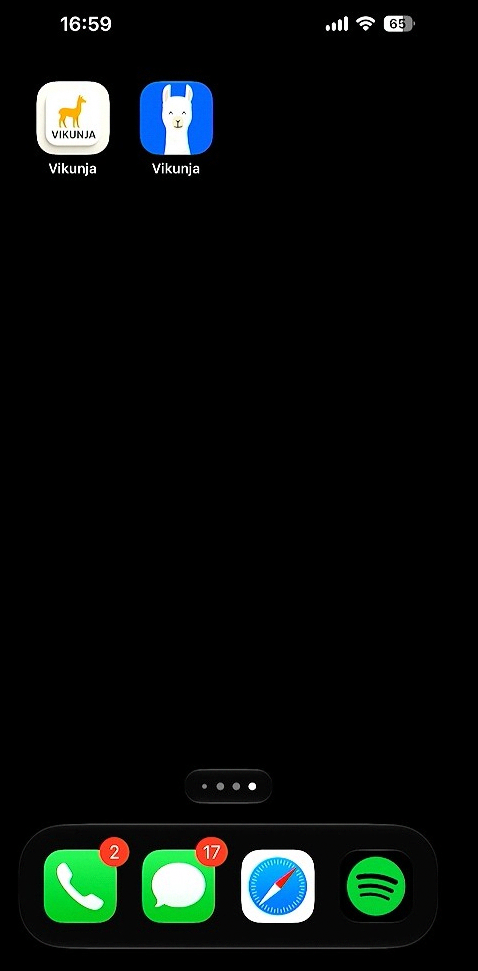 Both options appear as native apps on a mobile device.