ARC8 Email and Calendar Setup
A tutorial on how to import the new signature version and add arc8 calendars.
Created 05/20/26 First time doing HTML signature
Email Signature Import Windows
We are moving to HTML based email signatures. This allows us to embed hyperlinks on phone number, email, and the ARC8 logo. This will eliminate the error of our signature not loading correctly for some client recipients.
Please see the Synology repository for your email signature file. See also: eM Client Download
- In the top left corner open the hamburger menu and select Settings


3. Select "Templates and Signatures"

4. Select the "Signatures..." button

5. Select "Import"

6. Select your signature file (e.g. "Daniel_Perry_Email_Signature_05-20-26.html")
7. Close the "Signatures..." window and be sure to apply your new signature for new mail, replies, and forwards

8. Select Save & Close in the top left corner of the window and congratulations, you new signature has been applied!
eM Client Calendar Setup
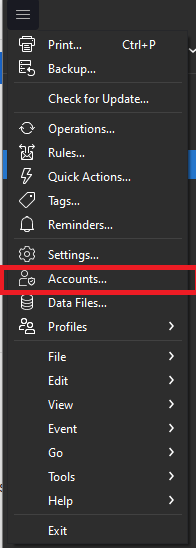
2. Add account:

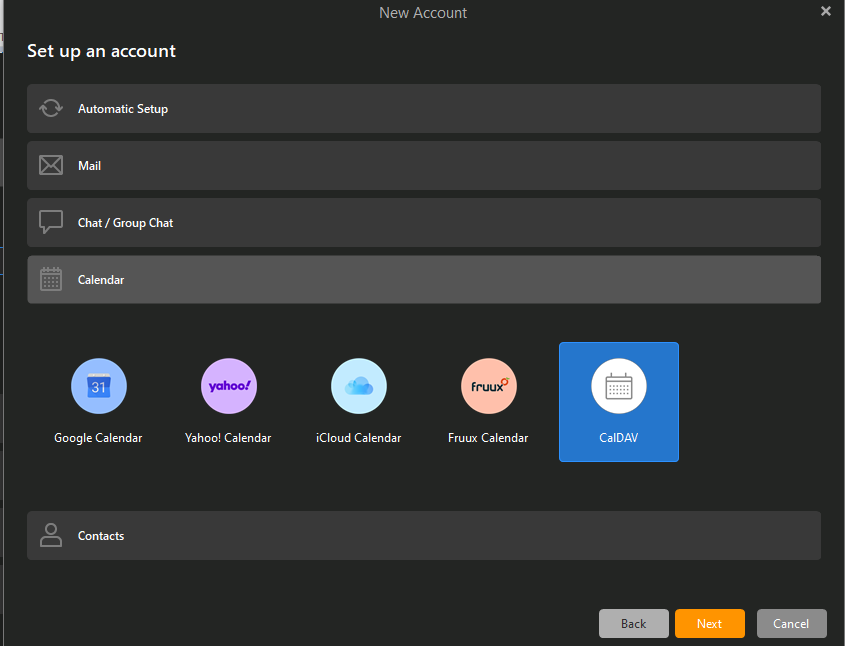
3. Select calendar and CalDev:
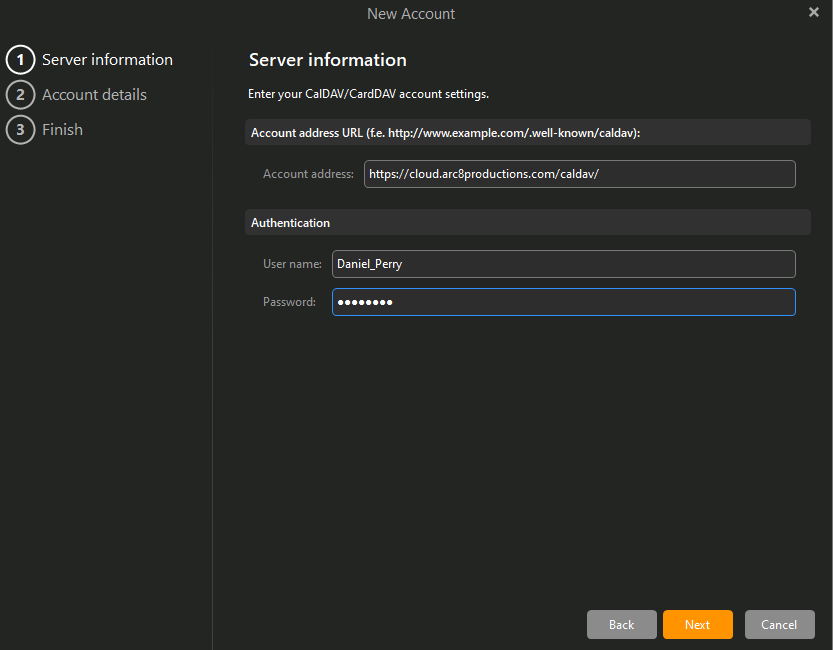
4. Fill out the information with your Synology login credentials and "https://cloud.arc8productions.com/caldav/":
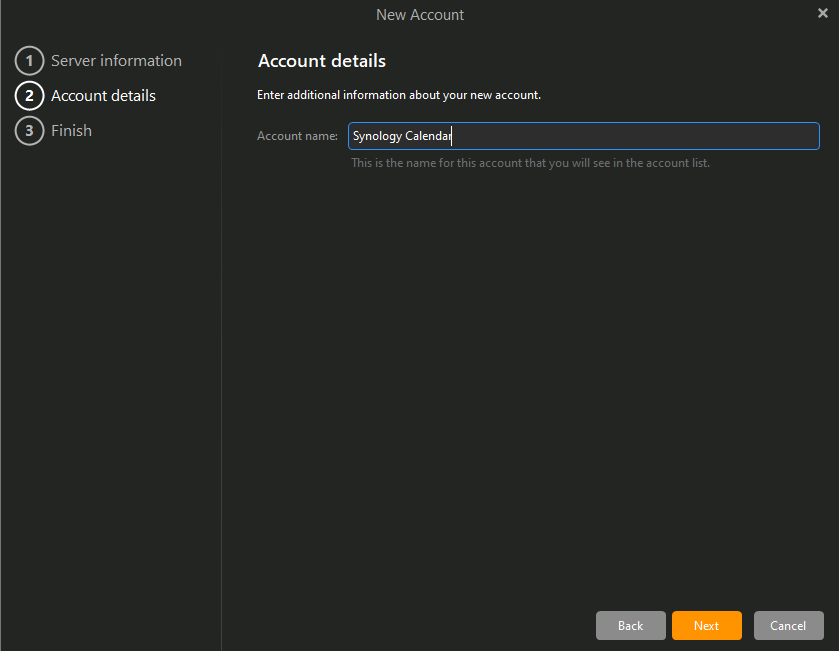
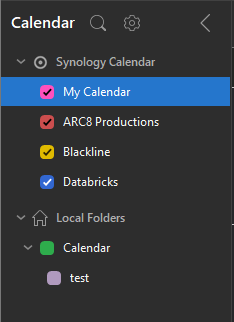
5. Specify what you want your account to show up as in the calendar view (e.g. Synology Calendar):
6. Click Finished and it should authenticate and show up in your calendar view
ARC8 Email Setup On iOS
This is a tutorial to setup your ARC8 email with the native iCloud Mail app
1. Open Settings and select Apps

Open Settings. Scroll to the bottom and select Apps.
2. Select Mail

Scroll down and click Mail.
3. Selct Mail Accounts

Select the mail accounts sub menu option
4. Select Add account

Below your already added accounts, select Add Account.
5. Enter in your ARC8 Email

Fill in your ARC8 email then click Next.
6. Select Add Other Account

Click Add Other Account.
7. Select Mail Account

Select Mail Account.
8. Fill in IMAP settings

Enter all account information and click Next.
Set Host Name to mail.arc8p.com.
9. Save IMAP settings

10. Select Mail

Select Mail to sync your ARC8 mail
Turning on Notes will only sync your iCloud Notes App with other iCloud devices also logged in on your ARC8 email
11. Email Appears in Mail App

Ensure the email appears in the Mail App as another mailbox below your already configured mailboxes.